Changelog
UI
Hiding navigation options
Now authors will be able to hide default navigation options in trainings. Thanks to this update authors are able to hide the linear navigation buttons and the sidebar menu. You can find out more about alternative navigation options we introduced in this changelog.
In the training overview, you can now find a new “Navigation settings” category in the appearance menu (wand icon in the right sidebar). Under this category you will have two new toggles to adjust the navigation options of your training.
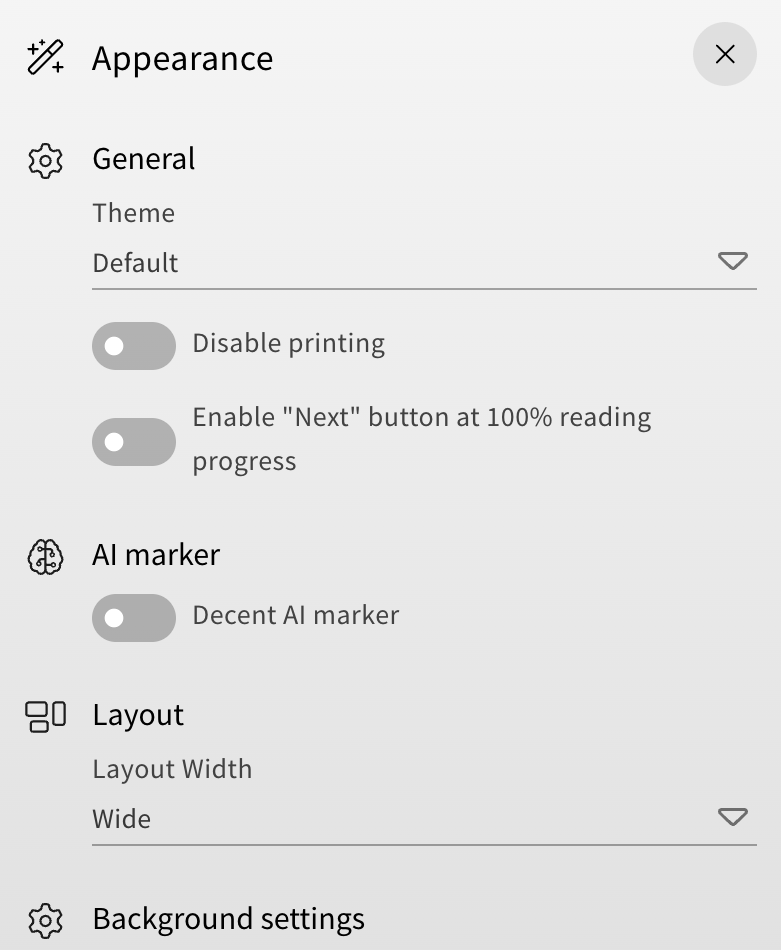
Hiding the linear navigation will disable the navigation buttons, which are found by default in the lower right corner on cards within a training. For authors, the buttons will appear greyed out, but for learners, they won’t be visible at all.

Hiding the sidebar navigation will disable the overview on the left, which you can open to navigate to specific cards within the training. The default text is displayed in the following image, but authors can also use the “Text placeholder Management” menu to change the text that is displayed when the sidebar navigation is hidden.

You can find the “Text placeholder Management” menu in the Administration category of the LXT settings (accessible from the top menu).
Thanks to this new feature, you can now combine it with the alternative navigation options to create a specific or even alternating order for your training that learners must follow.
Additional options for an element group stylesheet
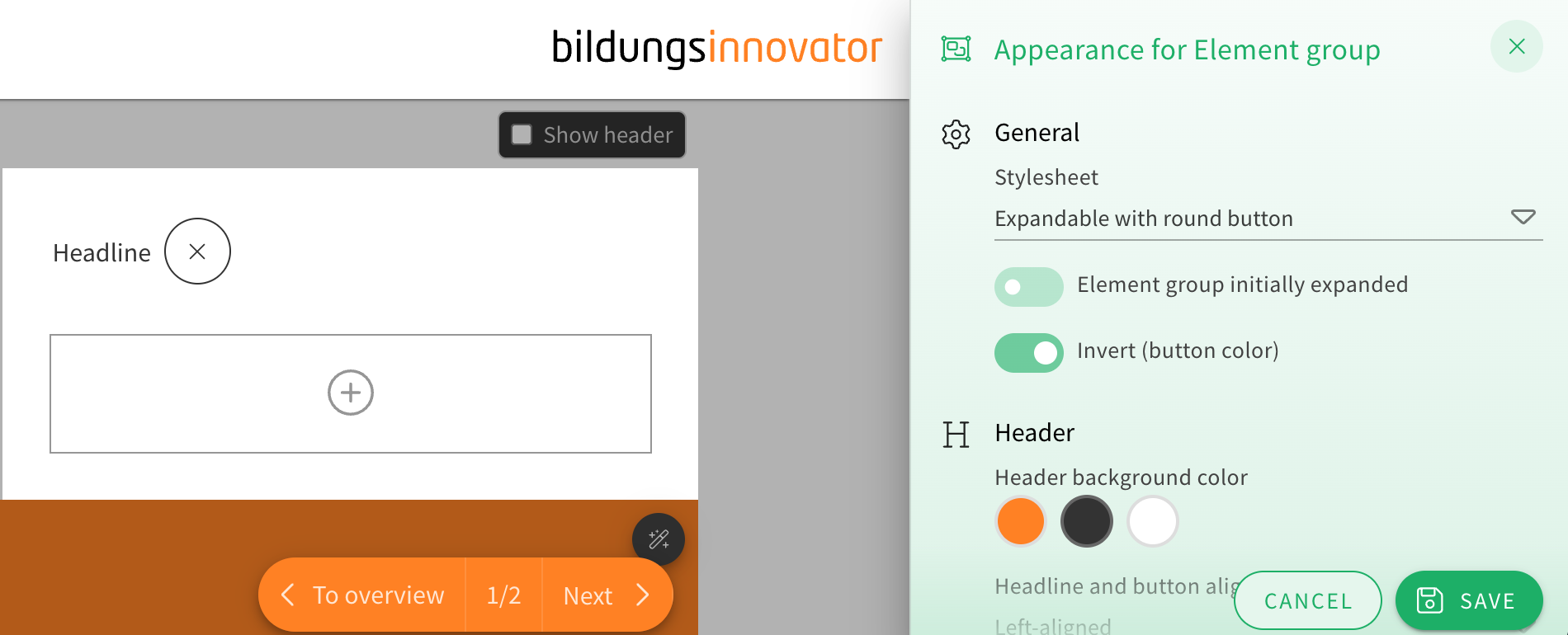
When choosing the appearance of an element group, the stylesheet “Expandable with round button” now offers two additional customization options.
You can now toggle drop shadows on or off and choose how rounded the corners of the element group look from a dropdown menu.
This gives the element group’s already extensive appearance options even more flexibility for authors.
Changes to the Sidebar
To make place for future features, we will be changing the layout of the sidebar menu.
The links tab depicted as a chain on the sidebar will no longer be found there. Instead, the links tab will from now on be found in the statistics tab depicted with the encircled “i” higher on the sidebar.
In the comparison below, you can see on the left where the links tab will be found from now on, as well as the new sidebar to the right. In the picture on the right, you can compare where the feature used to be.
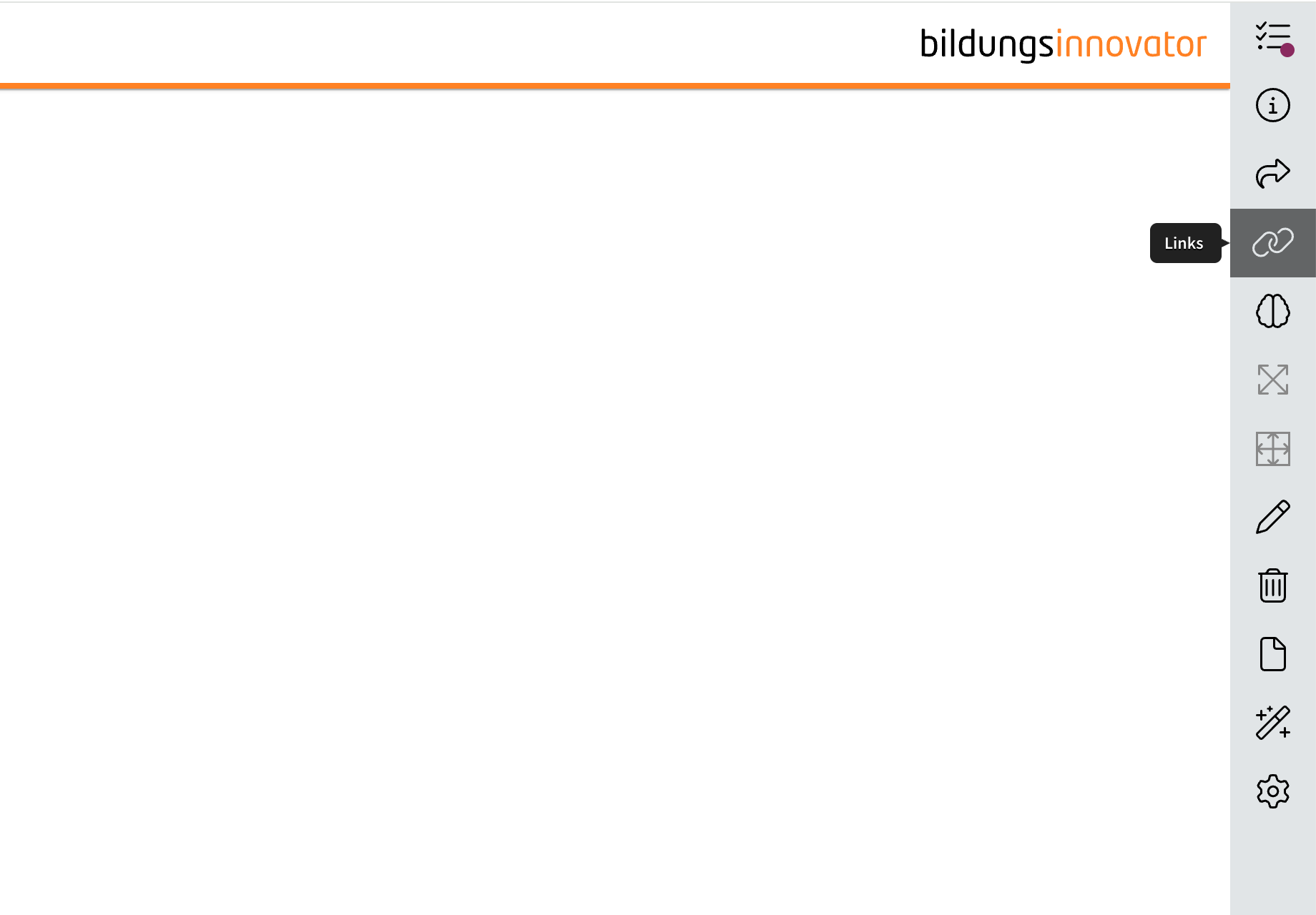
That way, when new tabs are added in the future to accommodate new features, the dimensions will remain the same while another feature is added to the sidebar.