Changelog
Changes for admins
Current browser versions for optimal LXT use
Dear LXT users,
as you already know, up-to-date browser versions are essential for LXT to function smoothly and securely. That is why we are updating our system requirements again this year – so that you can continue to work securely and with the best possible performance.
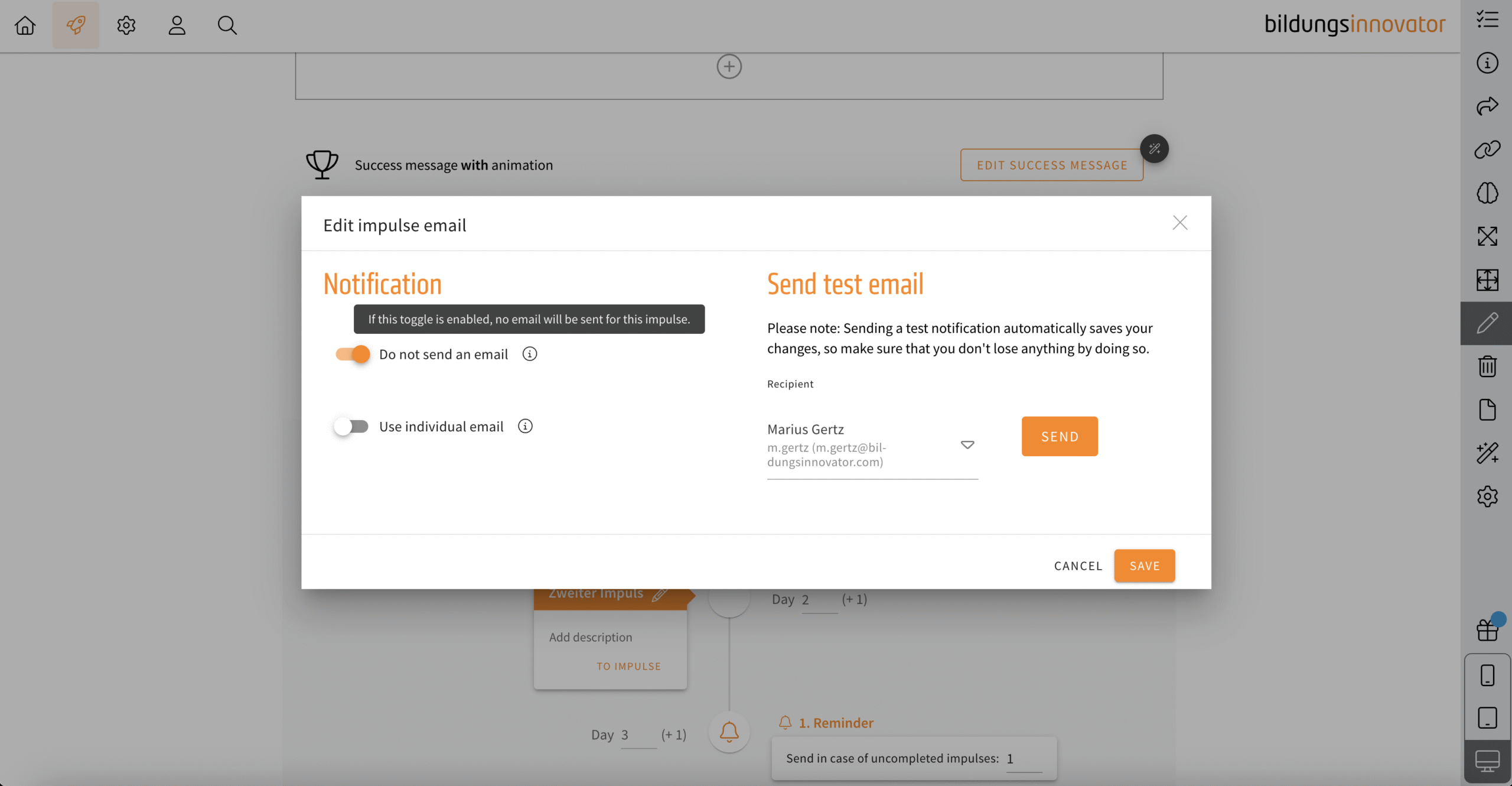
Transfer campaign: Deactivate e-mails for impulses
Decide now whether LXT should notify your learners by e-mail about a newly activated impulse or not. Decide individually for each impulse. You will find the option via the e-mail symbol on each impulse.
Element channel – expert predefined
When you create a channel, no expert was automatically stored. If you then forget to define an expert, the questions will go nowhere. To prevent this, you as the creator of the channel are now automatically defined as an expert. If you want to change this, define a different expert. However, an expert must always be specified (mandatory field).
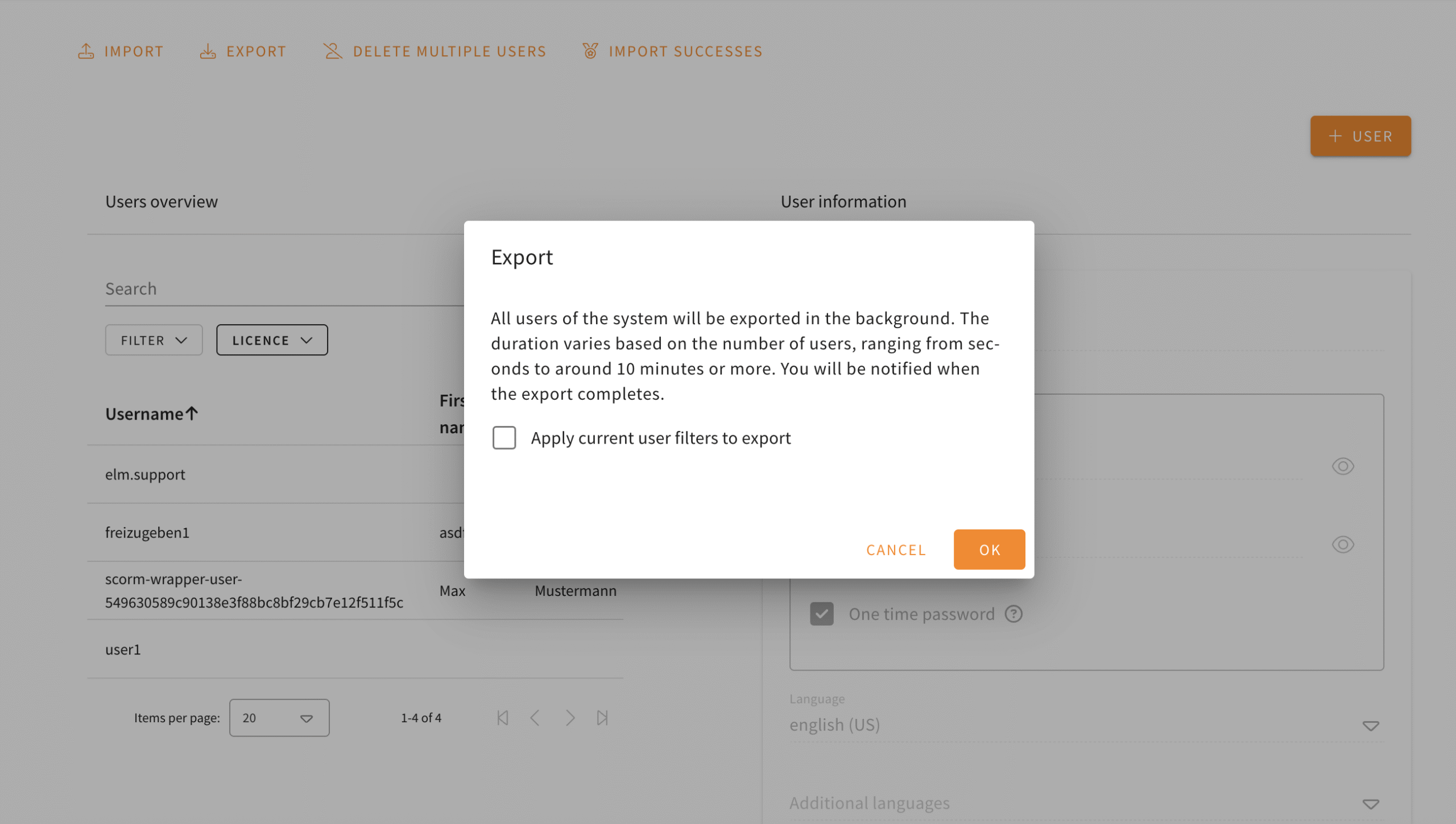
User-Export: Export with current filter settings
Do you need a user export that contains your current filter settings? From now on you can export the current user filter by clicking on the corresponding checkbox. SCORM wrapper users remain unaffected by this.