Changelog
Feature Improvement
Improved Text placeholder Management
The text placeholder management is used to replace the texts which LXT can give out in response to different actions of the user, like logging in or forgetting your password. Using this menu, custom messages can be displayed instead of the default ones.
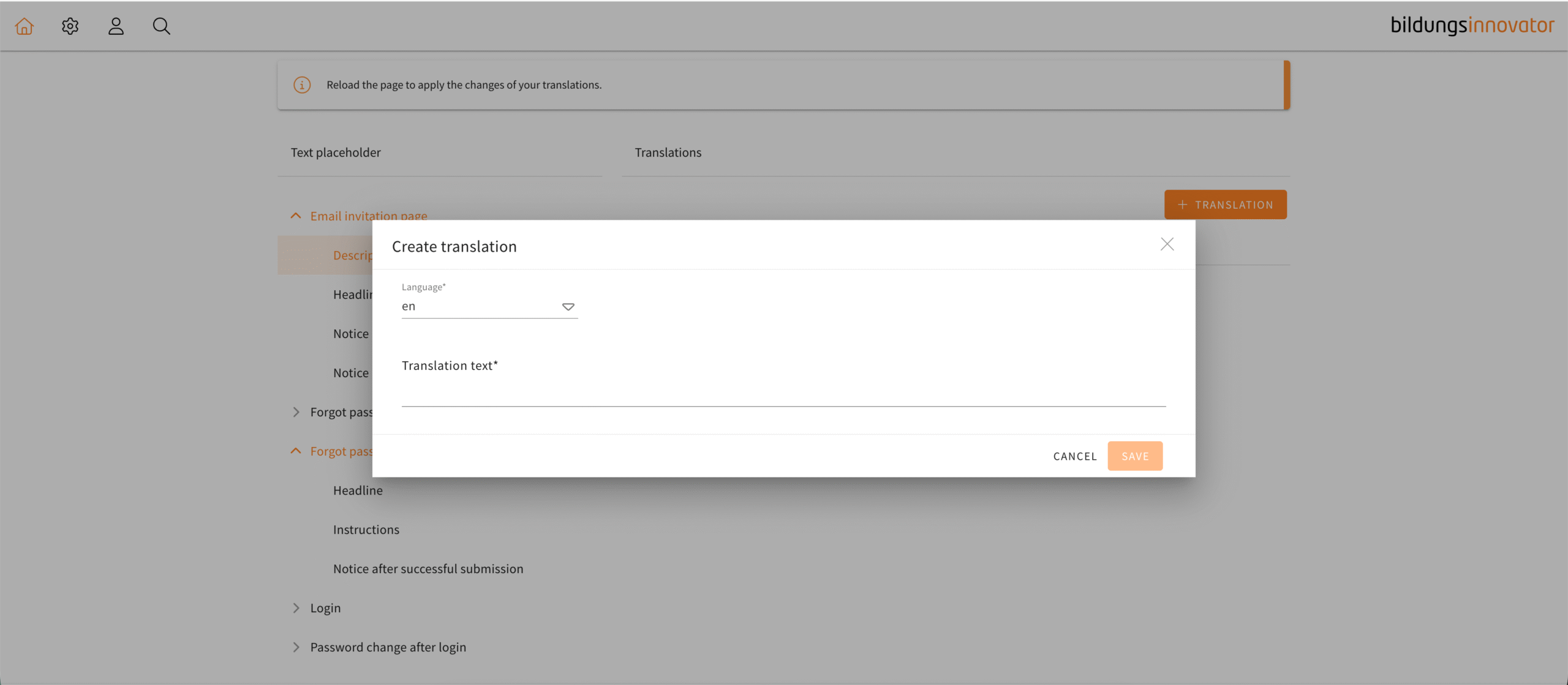
The menu for creating a translation in the text placeholder management has been changed to be more intuitive. Tooltips will now guide you through the process of creating a translation as well as be a reference point for users when writing their own translations. Once you have chosen a language, a tooltip will show the default text which you can immediately copy into your text field by clicking the “paste” button.
In the default text you will see examples of the appropriate placeholders which you can now easily copy and use. Also, a dropdown menu for placeholders has been added to the text editor similar to the one in a usual text element.
Those tools in combination with the tooltips are there to help the user navigate the text placeholder management in a more seamless way.
Additional options for an element group stylesheet
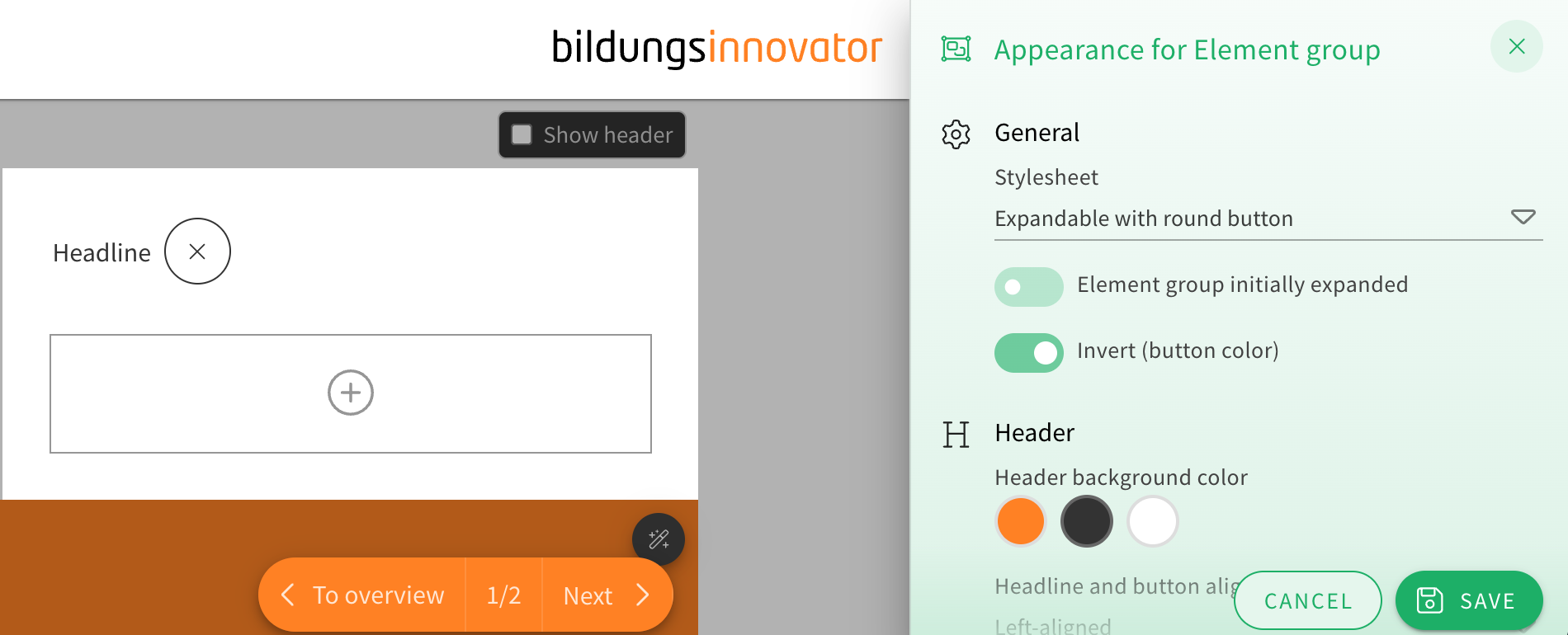
When choosing the appearance of an element group, the stylesheet “Expandable with round button” now offers two additional customization options.
You can now toggle drop shadows on or off and choose how rounded the corners of the element group look from a dropdown menu.
This gives the element group’s already extensive appearance options even more flexibility for authors.
Appearance menu redesign
The style settings drawer, in which you can choose to change the appearance of different elements, rows, and others, got a redesign. The redesign will help to make the menu look more structured and orderly, because the toggles are now better grouped together and the UI is more compact. The style settings drawer will also now be colored and match the element/row actions at the corners of the elements or rows.
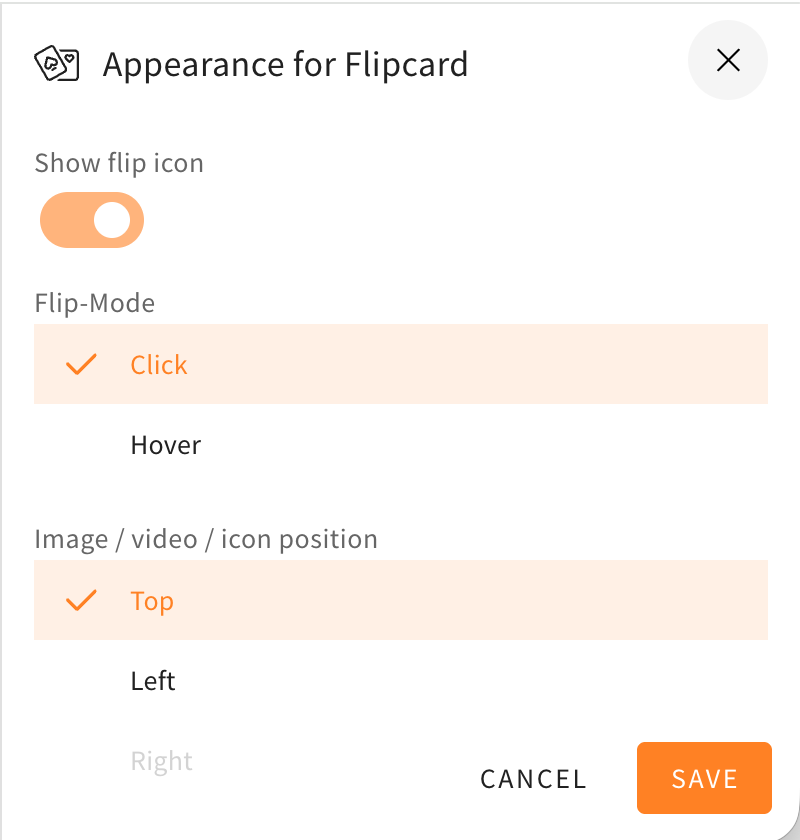
Here as an example you can see the style settings drawer of a flipcard before and after the changes described in this changelog.