
Changelog

Changes for authors

AI text assistance: Creation of texts with didactic intent


If you have activated AI functions in your LXT, you can use the AI assistant to generate text for the text element. Here, you can now include the didactic intent based on our successful guide “The Didactic Architect.” Simply click on the appropriate didactic intent and generate a text.
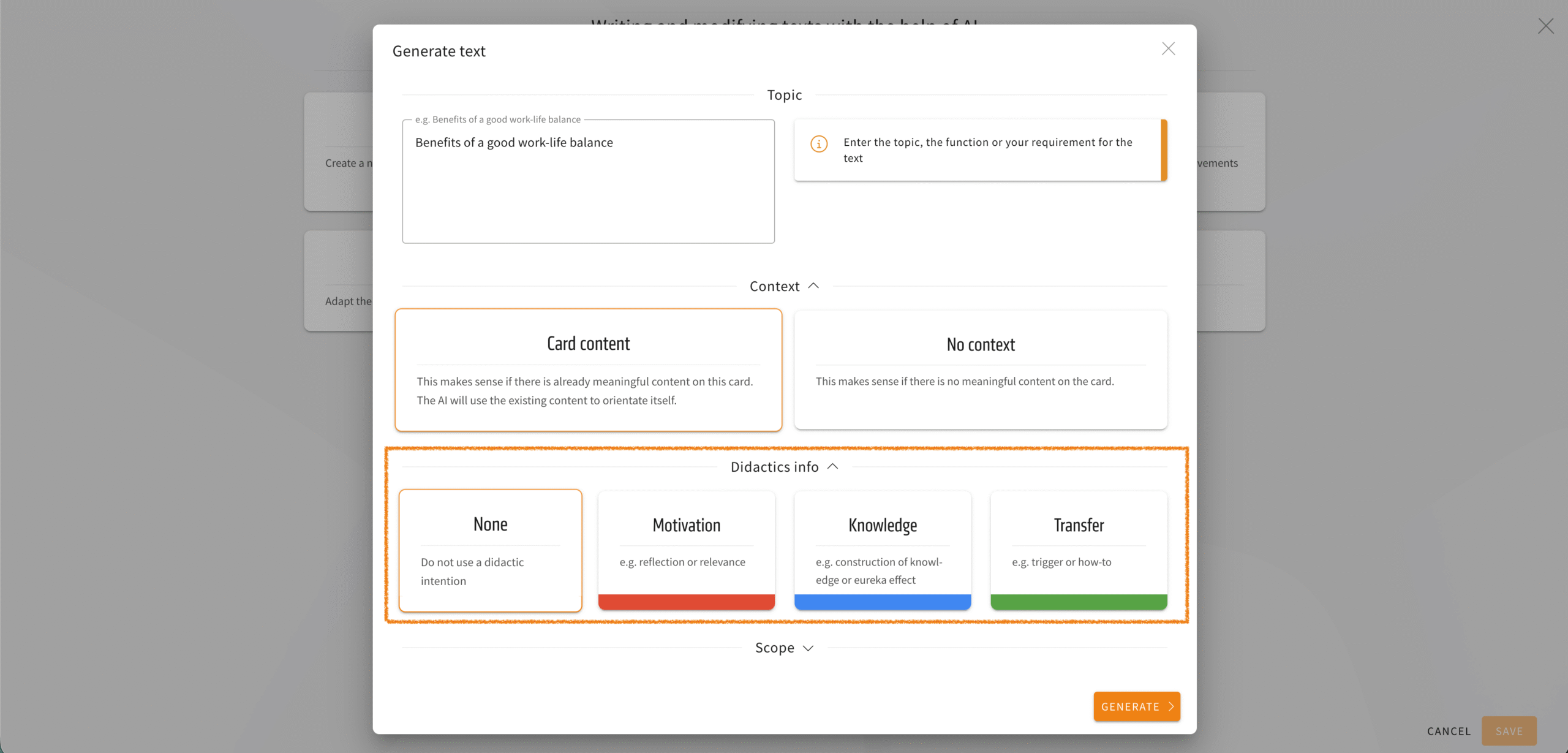
We have also made a cosmetic improvement to this menu: the individual options (context, didactics info, scope) can now be expanded or collapsed. This gives you a better overview.

DeepL in LXT: Translate multiple languages at once


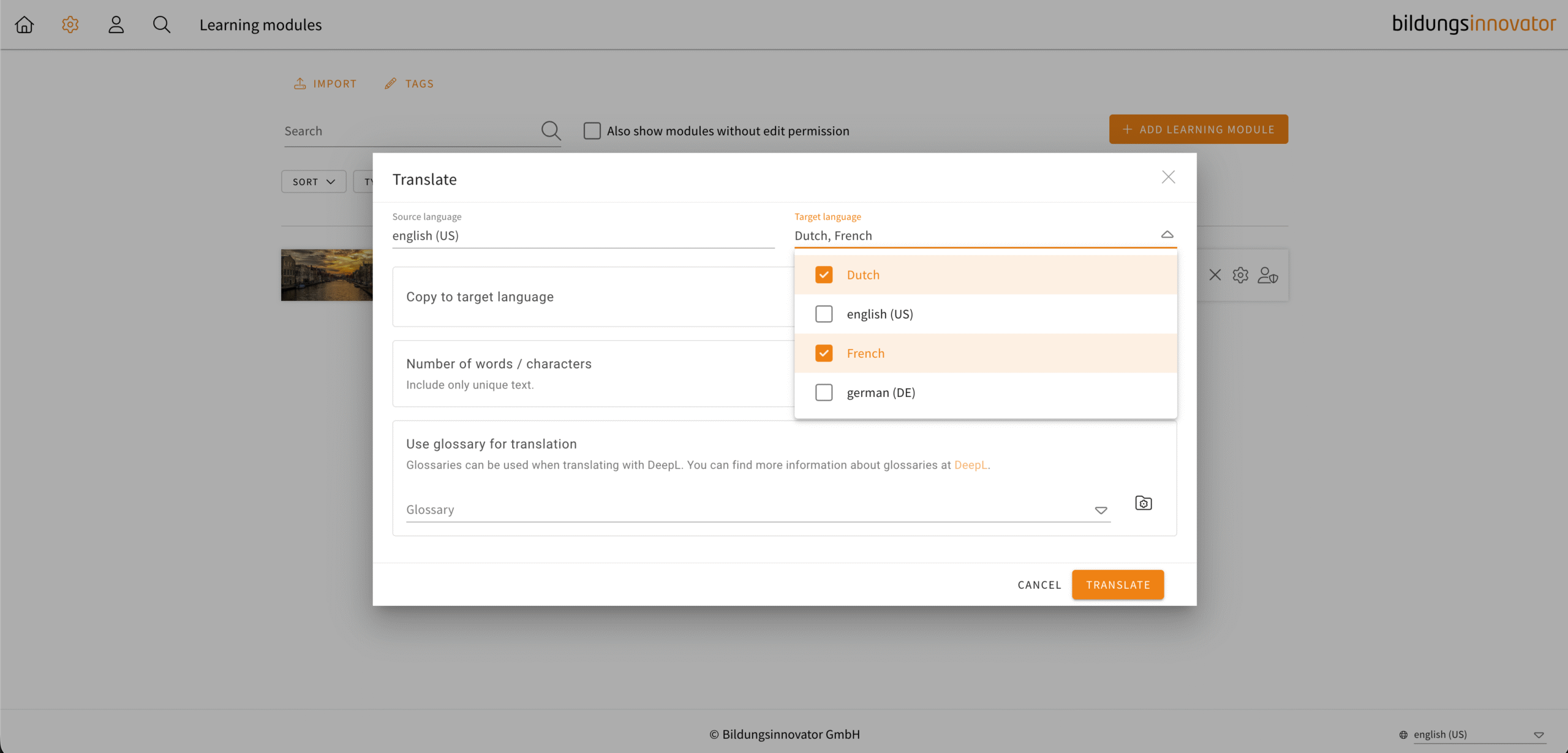
You can now translate your learning modules directly into multiple languages. In the translation dialogue, you can now select multiple languages as the target language. Copying into the target languages is then preset.

LXT creates a job in the background for each language. You will receive a notification for each completed translation, which you can find in your list of background jobs (Profile -> Background jobs).
Align element height to row for additional elements


In addition to the flipcard, you can now adjust the height of the following elements to align with the row height:

  1. Element group (only stylesheets that are not expandable)
  2. Table
  3. Text
  4. Image

Element Text: Extended inner spacing


In LXT, many of our customers like to use drop shadows as an option for text elements with stylesheet „Default“. However, this comes with the cosmetic disadvantage that the text and drop shadow are positioned too close together. To use text elements with drop shadows in a visually appealing way, you had to use either text formatting functions or an expanded element group.

This workaround is no longer necessary, as there is now a new “Extended inner spacing” toggle. This creates the needed space around the text.

Icon library available


When you upload a custom icon, you can decide whether it should be added to the library. If there are icons in the library, any author can select them via the new icon library tab. To remove icons deactivate the checkbox “Save the uploaded icon to the icon library. It becomes available to all users.”. Notice: Any author is able to deactivate the checkbox.

We may activate this feature for your installation: support@bildungsinnovator.com

Invite multiple reviewers at once


You can already invite reviewers directly in the learning module. We have made some improvements: You can now invite multiple reviewers at once by entering all email addresses and separating them with commas or semicolons.