Changelog
Changes for authors
Appearance menu redesign
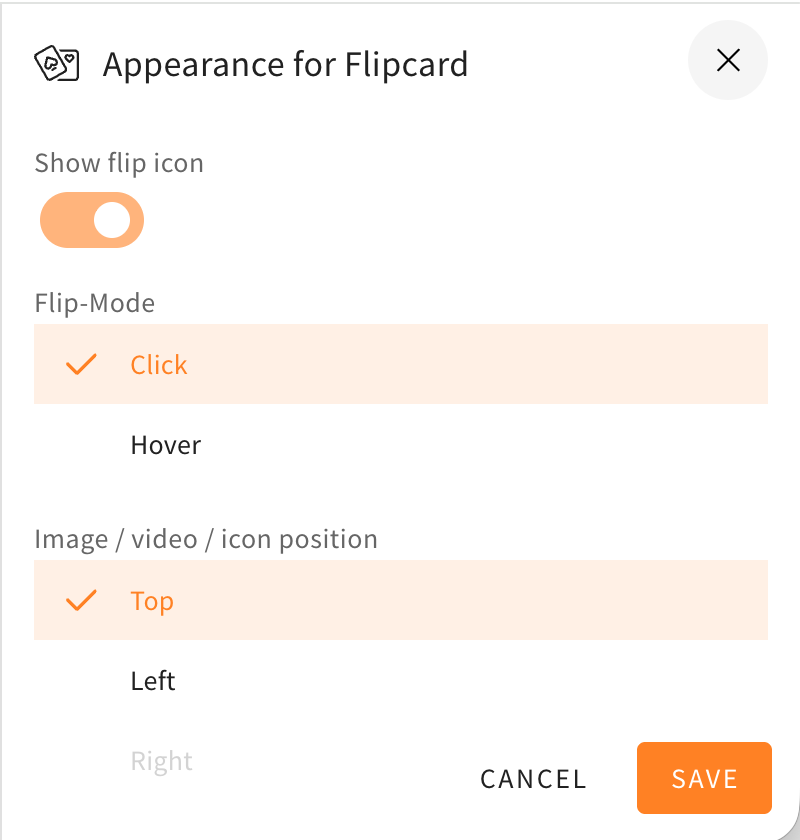
The style settings drawer, in which you can choose to change the appearance of different elements, rows, and others, got a redesign. The redesign will help to make the menu look more structured and orderly, because the toggles are now better grouped together and the UI is more compact. The style settings drawer will also now be colored and match the element/row actions at the corners of the elements or rows.
Here as an example you can see the style settings drawer of a flipcard before and after the changes described in this changelog.
Changes to the Sidebar
To make place for future features, we will be changing the layout of the sidebar menu.
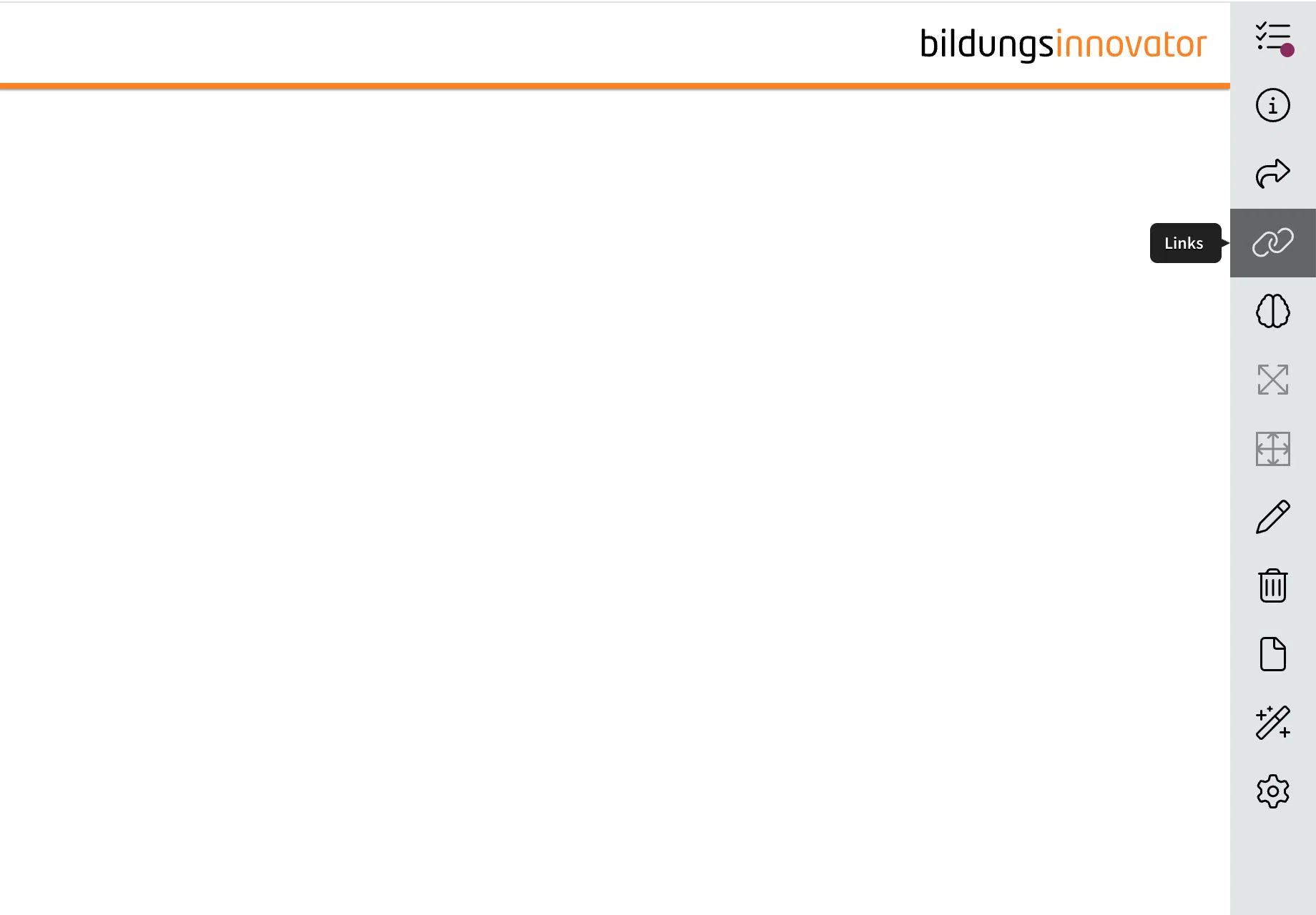
The links tab depicted as a chain on the sidebar will no longer be found there. Instead, the links tab will from now on be found in the statistics tab depicted with the encircled “i” higher on the sidebar.
In the comparison below, you can see on the left where the links tab will be found from now on, as well as the new sidebar to the right. In the picture on the right, you can compare where the feature used to be.
That way, when new tabs are added in the future to accommodate new features, the dimensions will remain the same while another feature is added to the sidebar.