Changelog
evaluation
Visual upgrade to the evaluation in tests
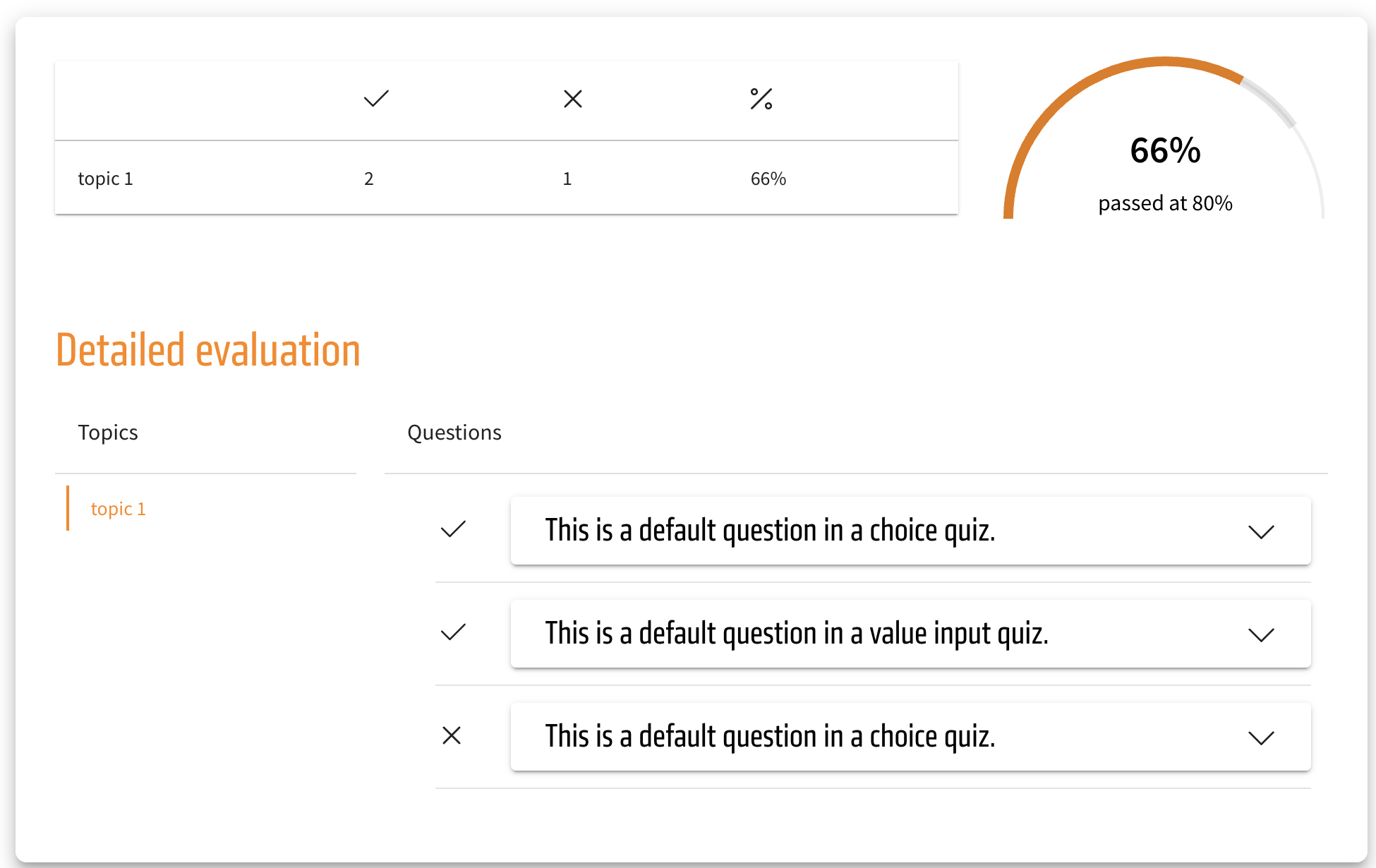
The cross and checkmark icons in the test evaluation are now fittingly colored as the default. The checkmark icon, indicating a correctly answered test question, is now green, while the cross icon, which indicates an incorrectly answered test question, is now red.
Those colors are also theming-dependent and could be returned to the former single-color black. But this also means that through theming, the colors of the checkmarks and crosses can be adjusted to whatever color you wish.
These changes apply to the normal evaluation of a test as well as the extended version. They are also reflected in a SCORM export.
Sample solutions in tests
As a learner instead of only getting feedback about the correctness of their answer in a test authors can now use a new toggle to allow learners to also see the sample solutions of the test.
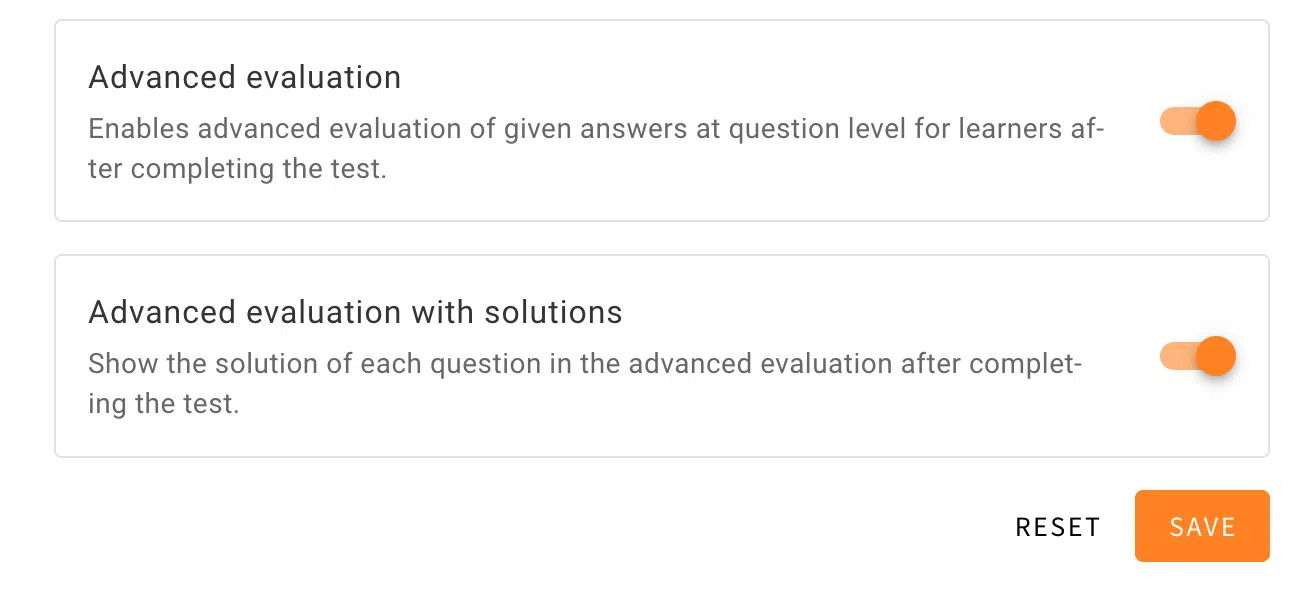
When creating a test or editing it authors can now use a new toggle, which can be found at the bottom of the tests settings. Using the toggle for “Advanced evaluation” to reveal the toggle for “Advanced evaluation with solutions” with which authors can decide how much immediate feedback the learner will get.
If the toggle for “Advanced evaluation solutions” is active the learners will have the opportunity to see sample solutions for the test in the evaluation screen at the end. The questions are listed below and can be expanded further to see what the learner has answered. In this expanded view of the question learners will now see two tabs with “YOUR ANSWER” being viewed at default. Next to it learners will now be able to view the sample solution by using the tab “SOLUTION”.

