Changelog
LXT A und E
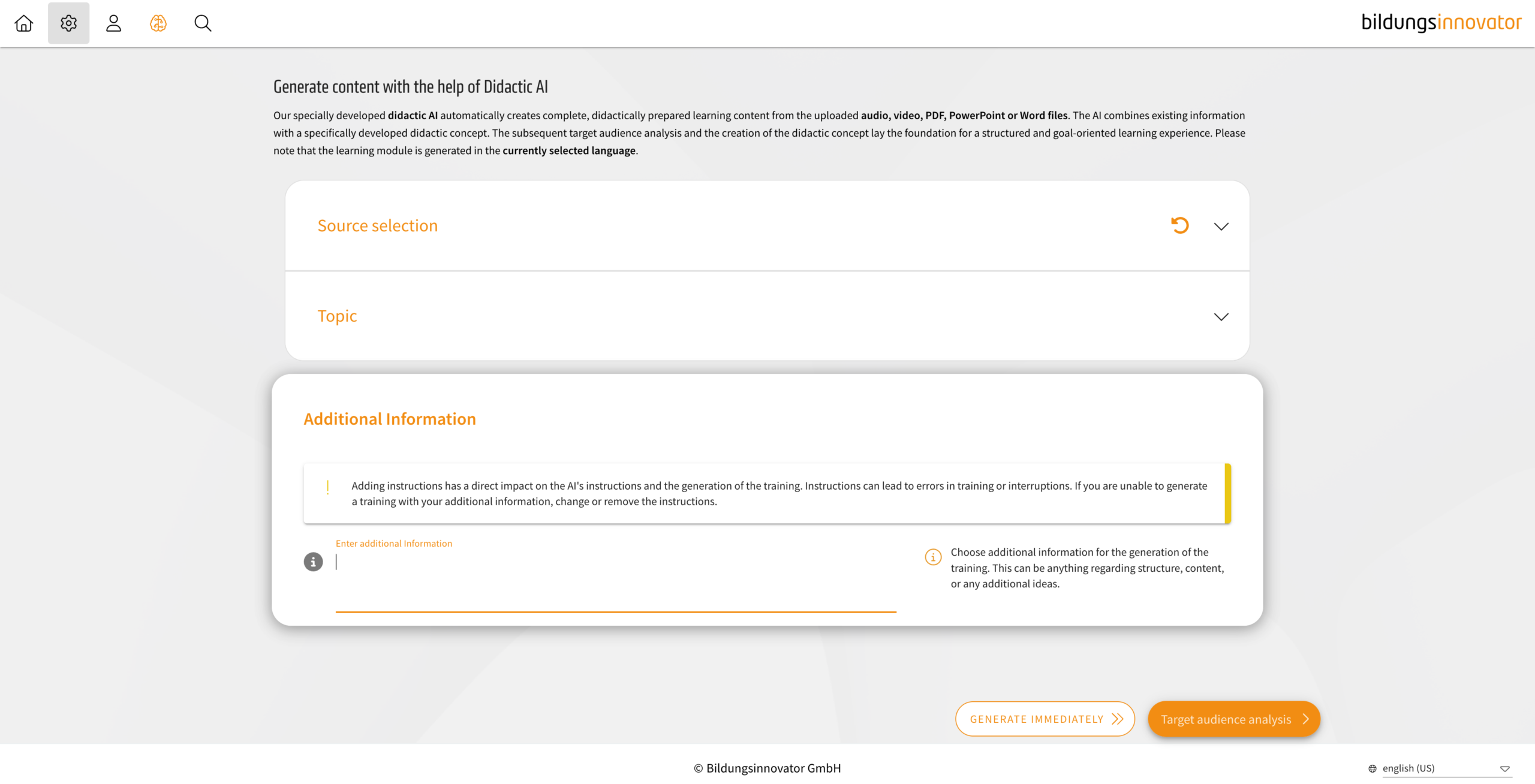
Didactic AI: free-text prompt
With the Didactic AI, it is now possible to specify an additional free-text prompt to further influence the result. This allows you to further refine both the approach and the structure.
Be aware, however, that using these details could mean you miss the mark when it comes to your training objectives. This can happen, for example, if you provide information or note down objectives that aren’t actually in the material.
Sample solutions in tests
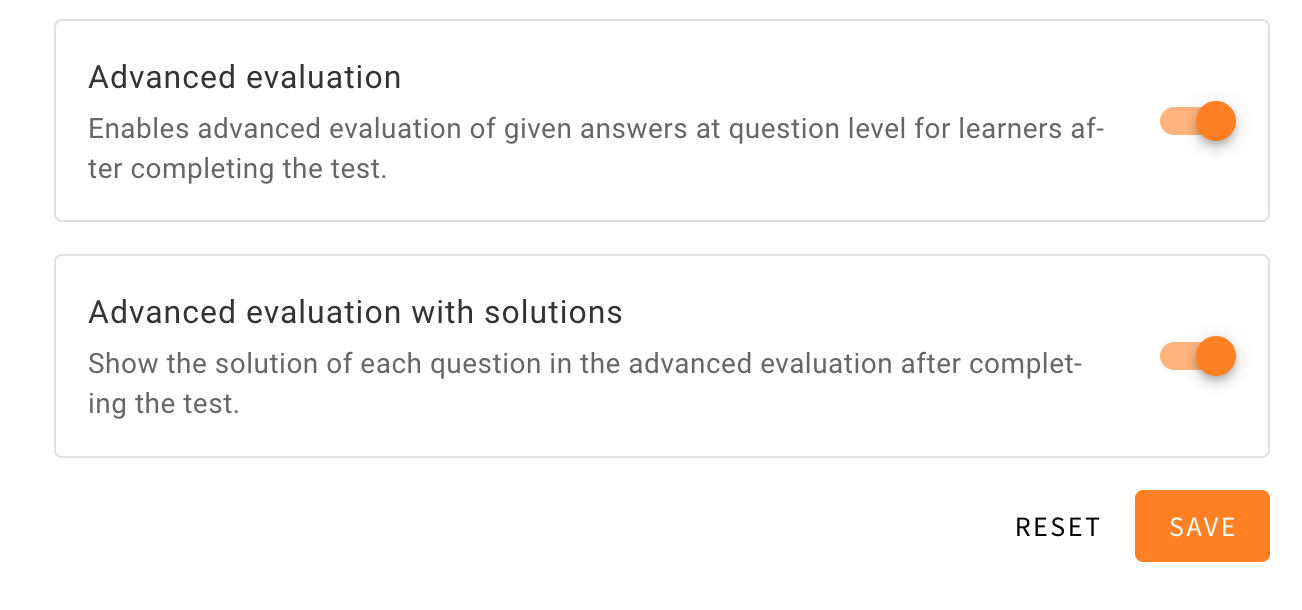
As a learner instead of only getting feedback about the correctness of their answer in a test authors can now use a new toggle to allow learners to also see the sample solutions of the test.
When creating a test or editing it authors can now use a new toggle, which can be found at the bottom of the tests settings. Using the toggle for “Advanced evaluation” to reveal the toggle for “Advanced evaluation with solutions” with which authors can decide how much immediate feedback the learner will get.
If the toggle for “Advanced evaluation solutions” is active the learners will have the opportunity to see sample solutions for the test in the evaluation screen at the end. The questions are listed below and can be expanded further to see what the learner has answered. In this expanded view of the question learners will now see two tabs with “YOUR ANSWER” being viewed at default. Next to it learners will now be able to view the sample solution by using the tab “SOLUTION”.


Downloading images in Resource Management
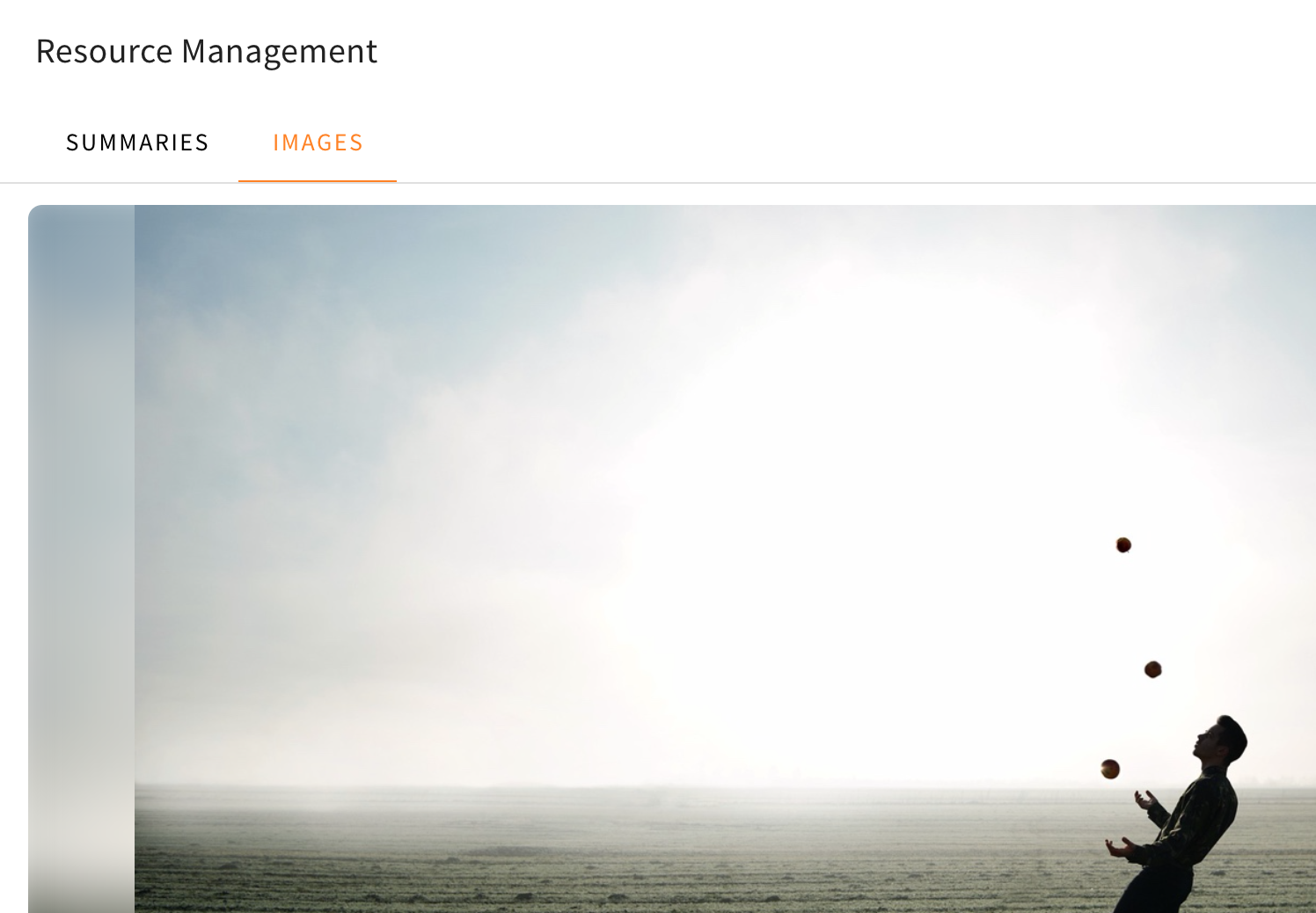
Users with access to the Resource Management menu will now be able to download images found in the images category of said menu. This way, specific images can easily be downloaded to be placed individually at another spot inside a training. This new addition gives the Resource Management the ability to better filter and reuse the images found in the file you had processed.
The download button can be found inside the image you wish to download at the top, once you navigate through the Resource Management, which can be opened in the sidebar on the right. Once you are inside the Resource Management and have used a file which was processed, you have to change the category at the top from “Summaries” to “Images”. Once you zoom in on a picture you wish to download, it will open the individual image you have chosen at the center of the menu. Here you will be able to see the download button at the top edge inside the image.
Hiding navigation options
Now authors will be able to hide default navigation options in trainings. Thanks to this update authors are able to hide the linear navigation buttons and the sidebar menu. You can find out more about alternative navigation options we introduced in this changelog.
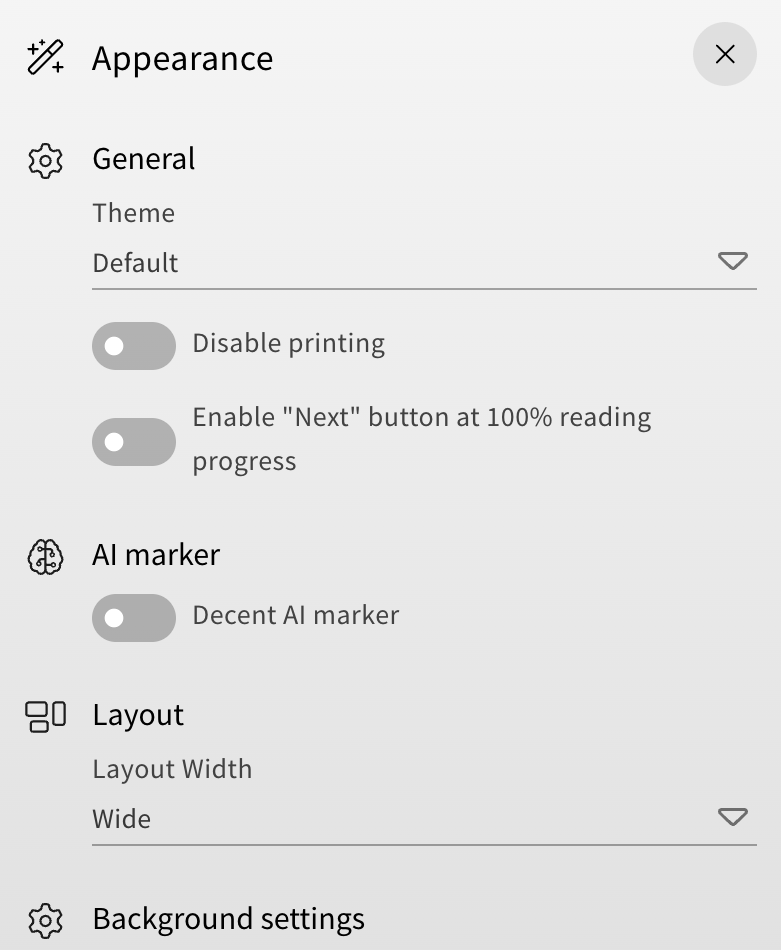
In the training overview, you can now find a new “Navigation settings” category in the appearance menu (wand icon in the right sidebar). Under this category you will have two new toggles to adjust the navigation options of your training.
Hiding the linear navigation will disable the navigation buttons, which are found by default in the lower right corner on cards within a training. For authors, the buttons will appear greyed out, but for learners, they won’t be visible at all.

Hiding the sidebar navigation will disable the overview on the left, which you can open to navigate to specific cards within the training. The default text is displayed in the following image, but authors can also use the “Text placeholder Management” menu to change the text that is displayed when the sidebar navigation is hidden.

You can find the “Text placeholder Management” menu in the Administration category of the LXT settings (accessible from the top menu).
Thanks to this new feature, you can now combine it with the alternative navigation options to create a specific or even alternating order for your training that learners must follow.