Additional options for the use of AI markers are being added.
More elements will now have the option to toggle an AI marker, which some elements already had as described in the other changelog about adding AI markers in general and the improvement of the toggle.
The following elements now have the AI marker toggle added:
- Chatbot
- Stage
- Interactive simulation
- Slideshow
- Background Switcher
- Flipcard
- Image comparison
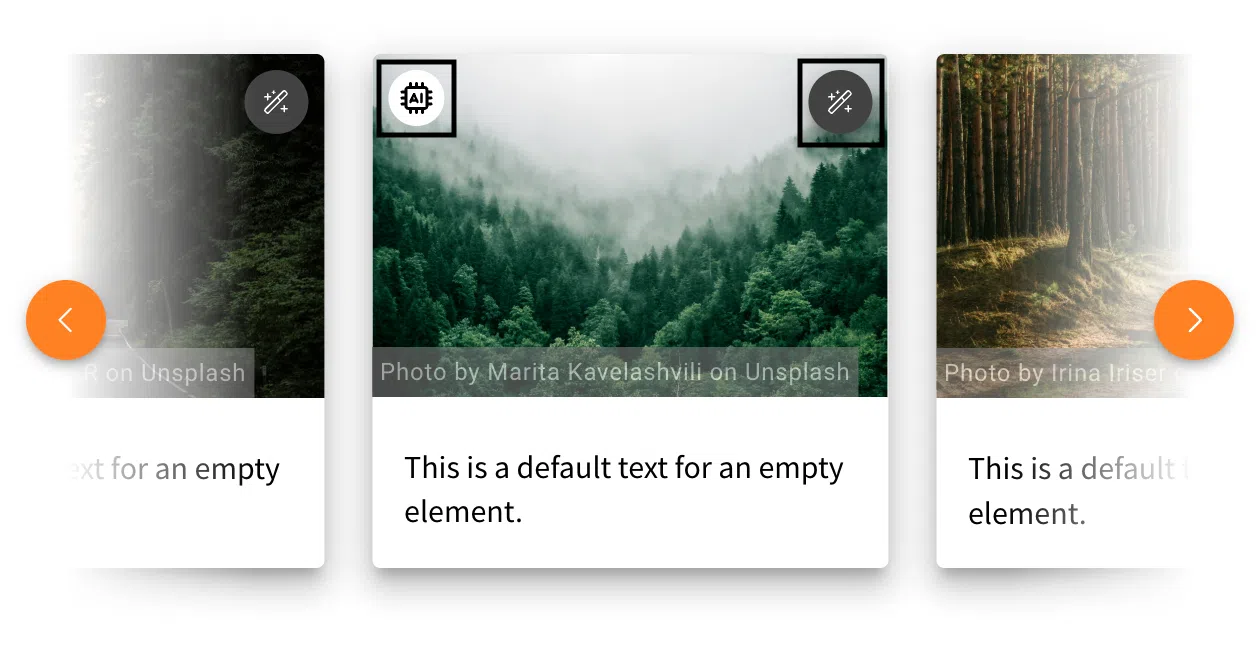
The Slideshow, Background Switcher, and Flipcard will have a marker for each slide, which also adds the StyleSettings button to each slide. In the following example, you can see what the AI marker looks like when you add it to one picture in the slideshow and where you can find the menu to add it for each slide separately.
The Image Comparison will also have the toggle option to choose which image was created with the help of AI. This way, you can add the marker to the left or right image individually or add the marker to both.
In addition, background images of a row also have an AI marker toggle, as well as images used as a preview of cards.