Changelog
Value slider quiz visual improvements
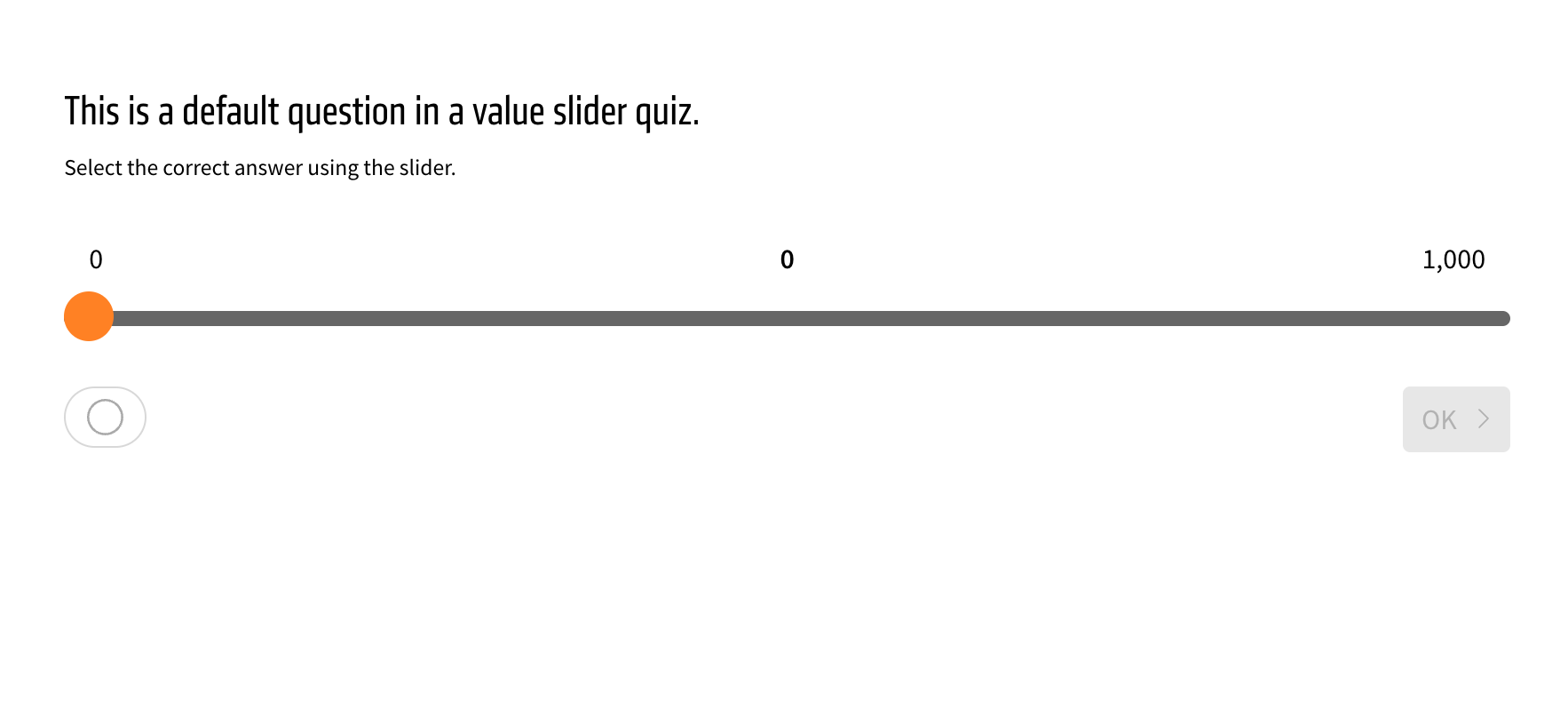
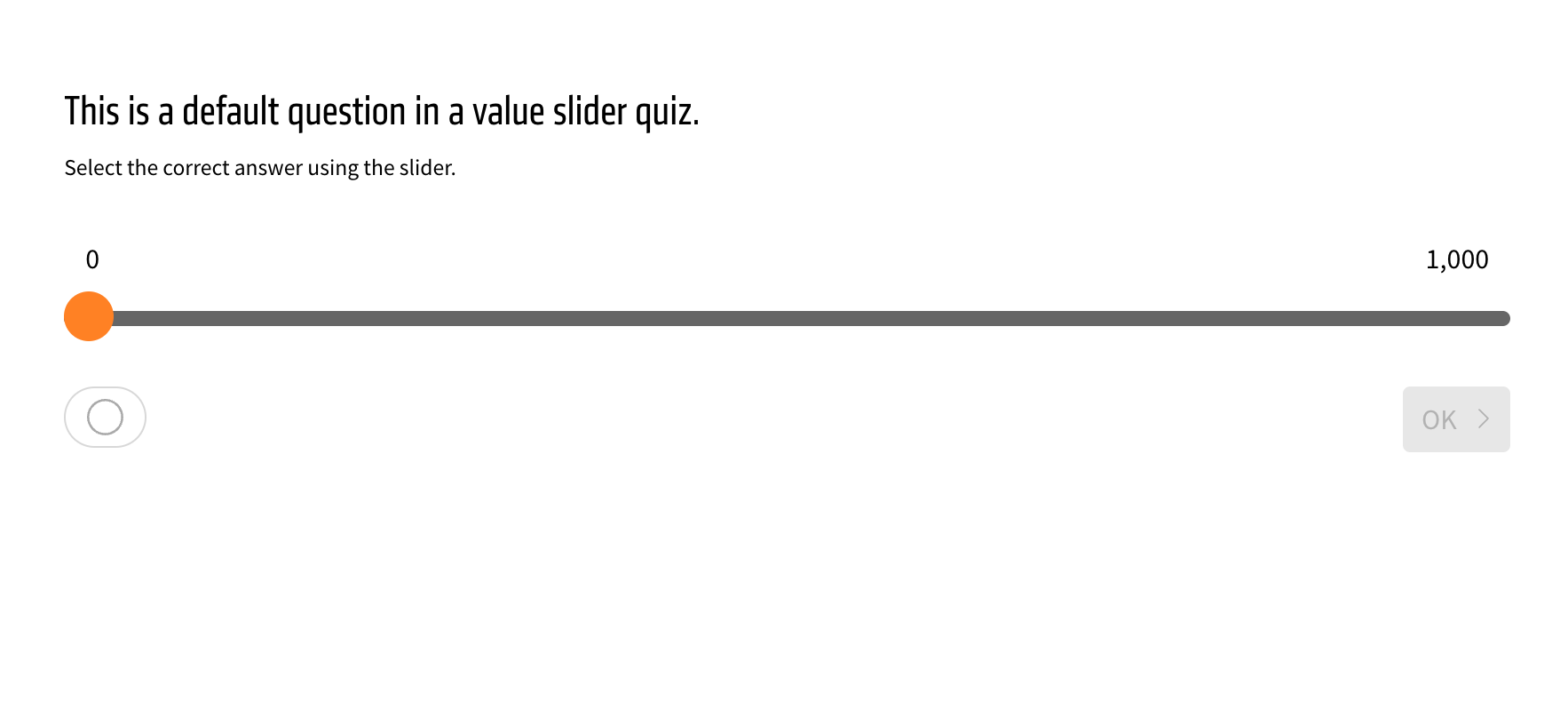
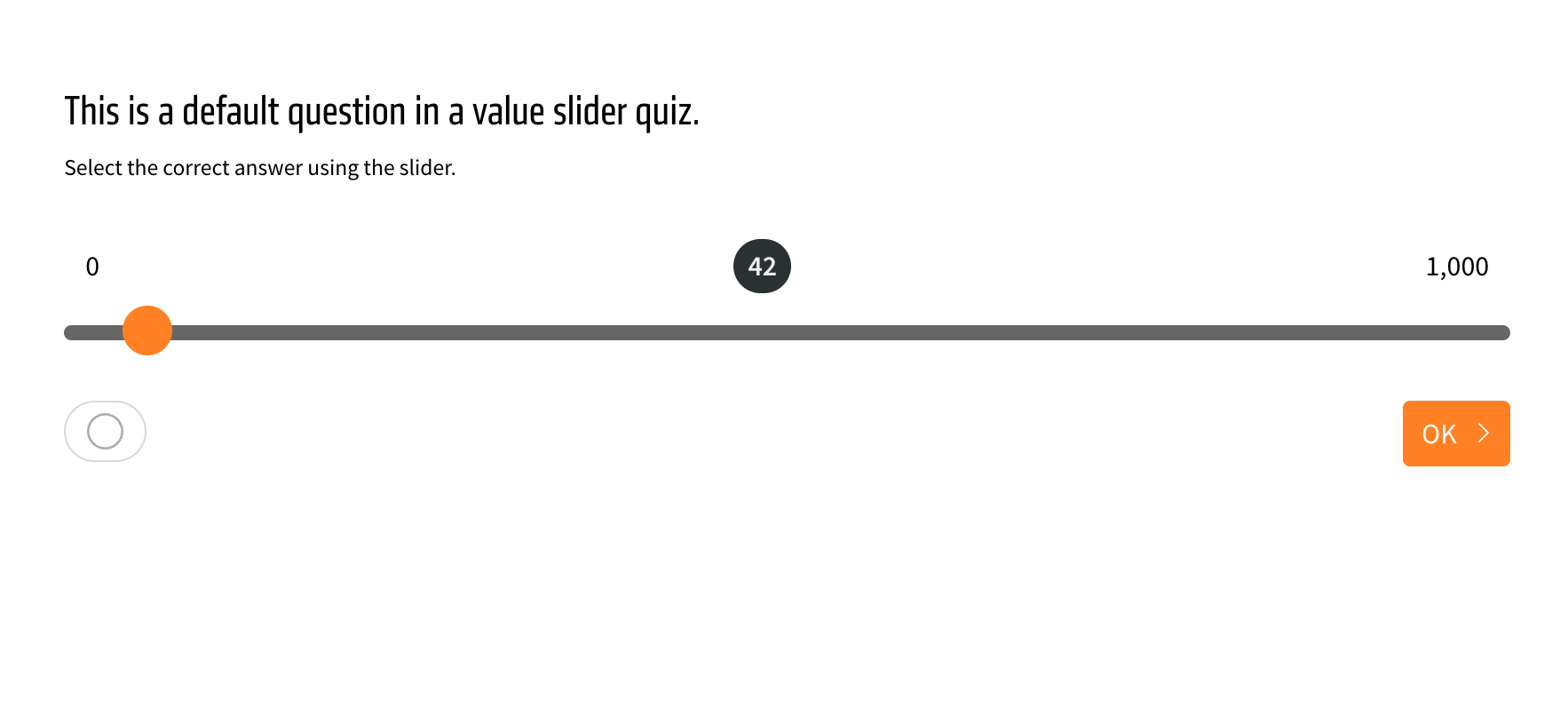
The value slider quiz element gets two new toggles for the appearance of the selected number, which appears in the middle.
One toggle disables the selected number in the middle initially, so it is only visible once the user moves the slider to make an answer. The other toggle inverts the background around the selected number to highlight it better. The toggles are found in the appearance menu of the element, found by clicking on the green wand.
Visual upgrade to the evaluation in tests
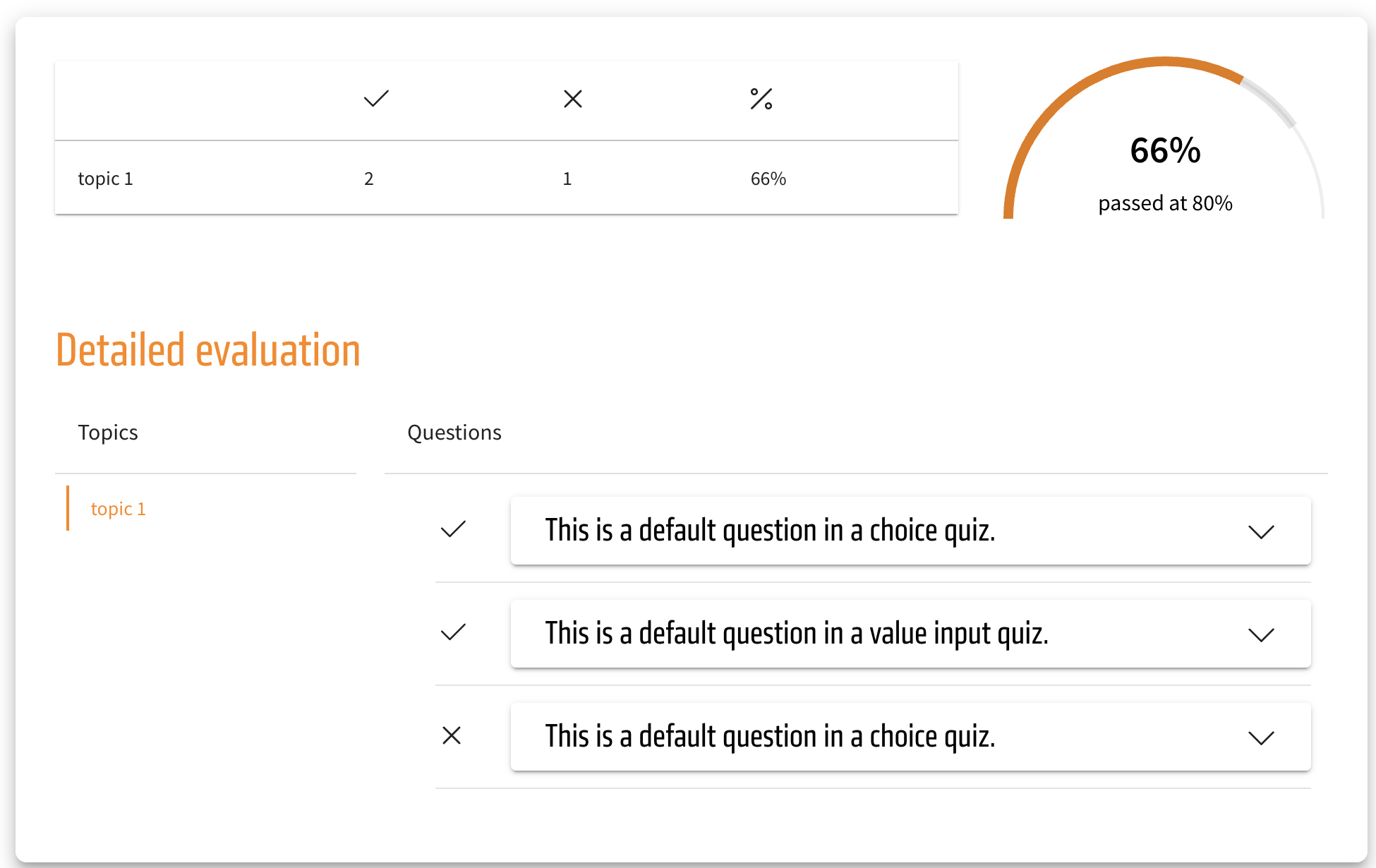
The cross and checkmark icons in the test evaluation are now fittingly colored as the default. The checkmark icon, indicating a correctly answered test question, is now green, while the cross icon, which indicates an incorrectly answered test question, is now red.
Those colors are also theming-dependent and could be returned to the former single-color black. But this also means that through theming, the colors of the checkmarks and crosses can be adjusted to whatever color you wish.
These changes apply to the normal evaluation of a test as well as the extended version. They are also reflected in a SCORM export.
Bugfix for text elements with drop shadow
We have done a bugfix that changes behaviour of some existing content, which is why we want to inform about this change.
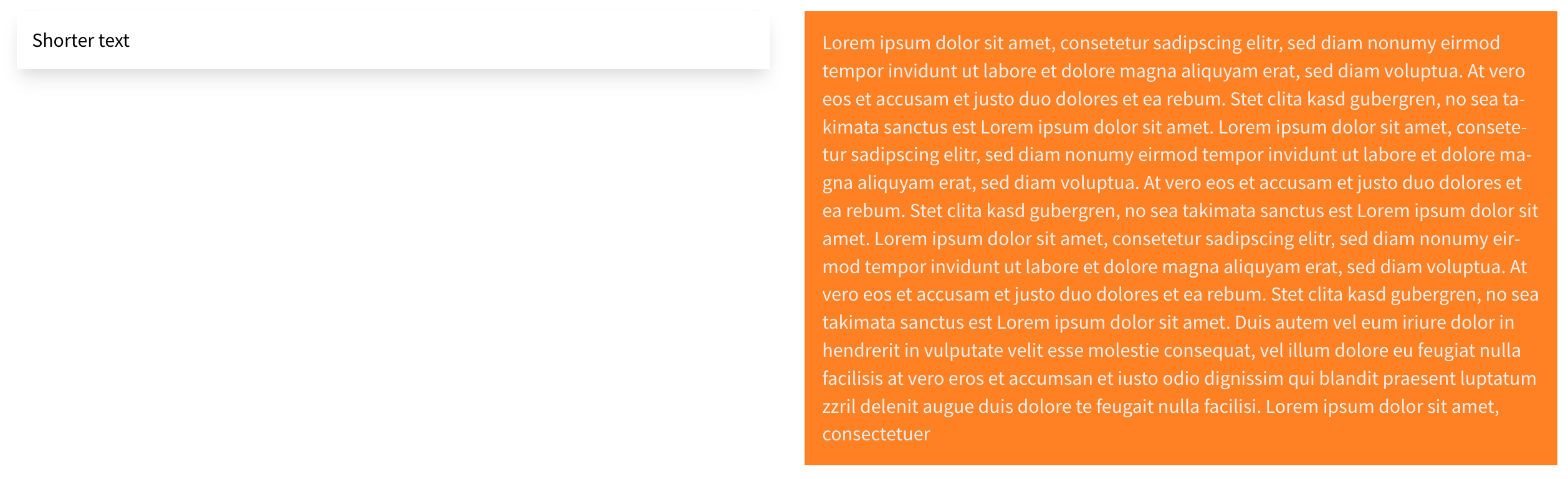
If you are using text elements with drop shadows and the option „Adjust height to row“ enabled, you might have noticed that the height of the drop shadow does not adjust to the height of the row.
In most cases this change will improve the layout, please find a few examples below.
However there might be cases where the fixed version might not look good. Usually it will be possible to fix those by disabling the option „Adjust height to row“ which should result in a very similar look as the old version. In very rare cases this might not work as well. Feel free to contact us at support@bildungsinnovator.com if you need help to resolve such a special case.

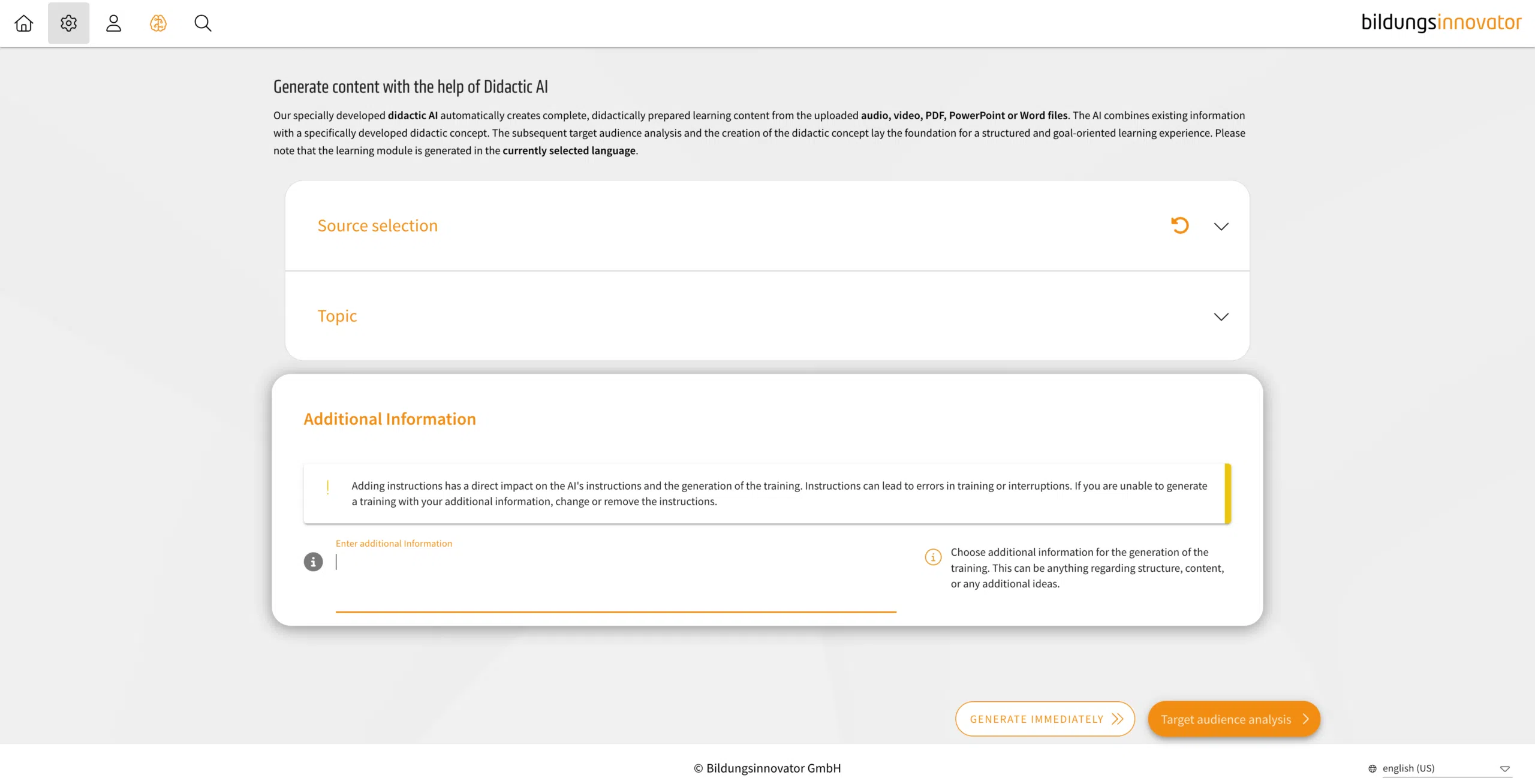
Didactic AI: free-text prompt
With the Didactic AI, it is now possible to specify an additional free-text prompt to further influence the result. This allows you to further refine both the approach and the structure.
Be aware, however, that using these details could mean you miss the mark when it comes to your training objectives. This can happen, for example, if you provide information or note down objectives that aren’t actually in the material.
Sample solutions in tests
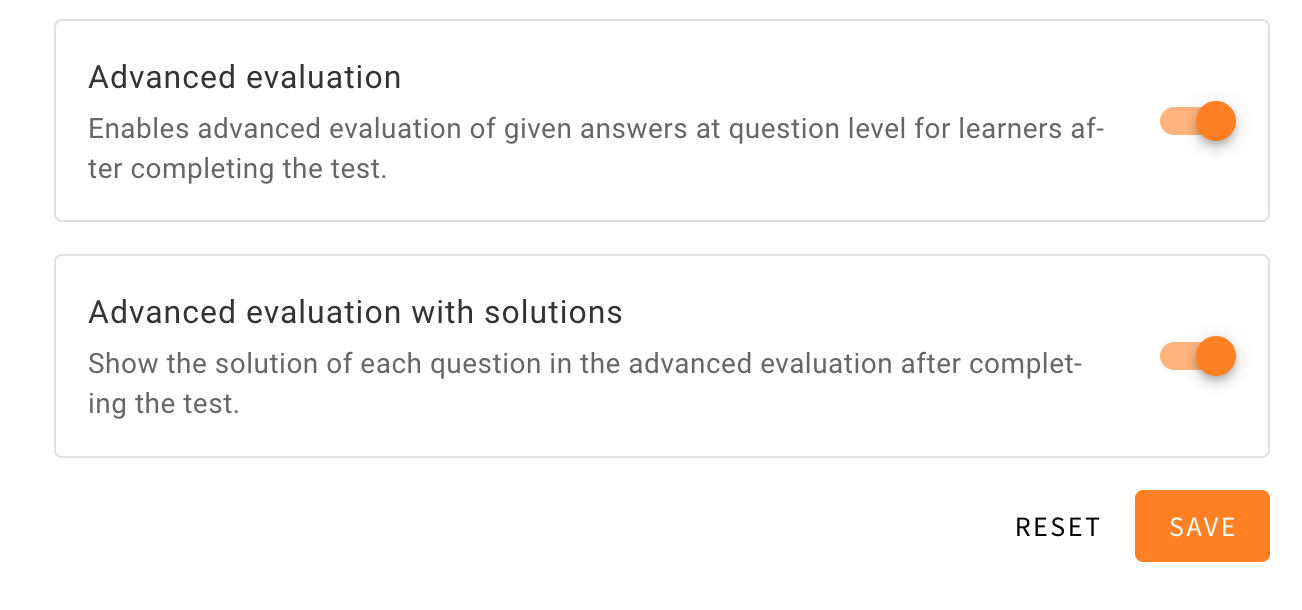
As a learner instead of only getting feedback about the correctness of their answer in a test authors can now use a new toggle to allow learners to also see the sample solutions of the test.
When creating a test or editing it authors can now use a new toggle, which can be found at the bottom of the tests settings. Using the toggle for „Advanced evaluation“ to reveal the toggle for „Advanced evaluation with solutions“ with which authors can decide how much immediate feedback the learner will get.
If the toggle for „Advanced evaluation solutions“ is active the learners will have the opportunity to see sample solutions for the test in the evaluation screen at the end. The questions are listed below and can be expanded further to see what the learner has answered. In this expanded view of the question learners will now see two tabs with „YOUR ANSWER“ being viewed at default. Next to it learners will now be able to view the sample solution by using the tab „SOLUTION“.


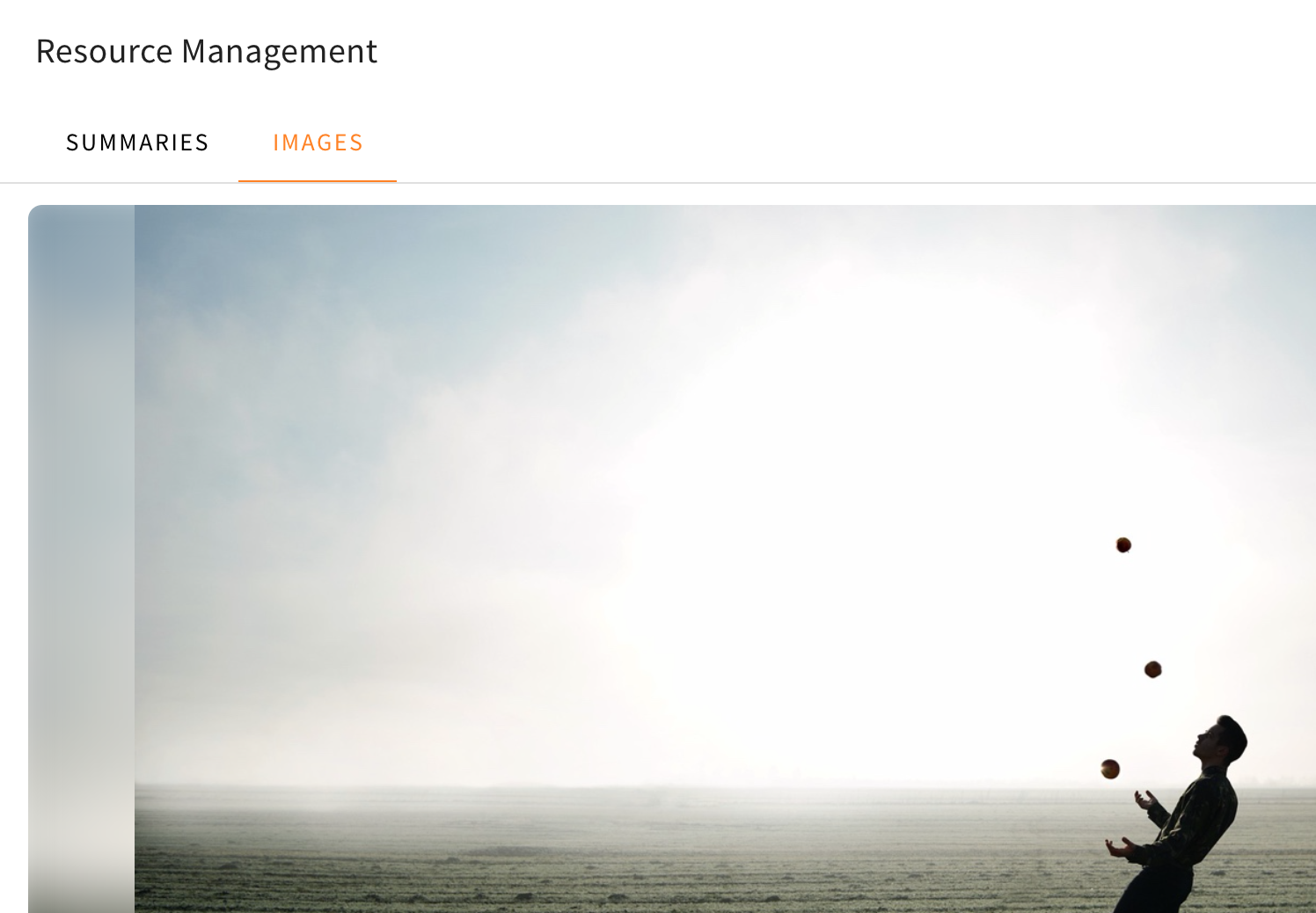
Downloading images in Resource Management
Users with access to the Resource Management menu will now be able to download images found in the images category of said menu. This way, specific images can easily be downloaded to be placed individually at another spot inside a training. This new addition gives the Resource Management the ability to better filter and reuse the images found in the file you had processed.
The download button can be found inside the image you wish to download at the top, once you navigate through the Resource Management, which can be opened in the sidebar on the right. Once you are inside the Resource Management and have used a file which was processed, you have to change the category at the top from „Summaries“ to „Images“. Once you zoom in on a picture you wish to download, it will open the individual image you have chosen at the center of the menu. Here you will be able to see the download button at the top edge inside the image.