
Changelog

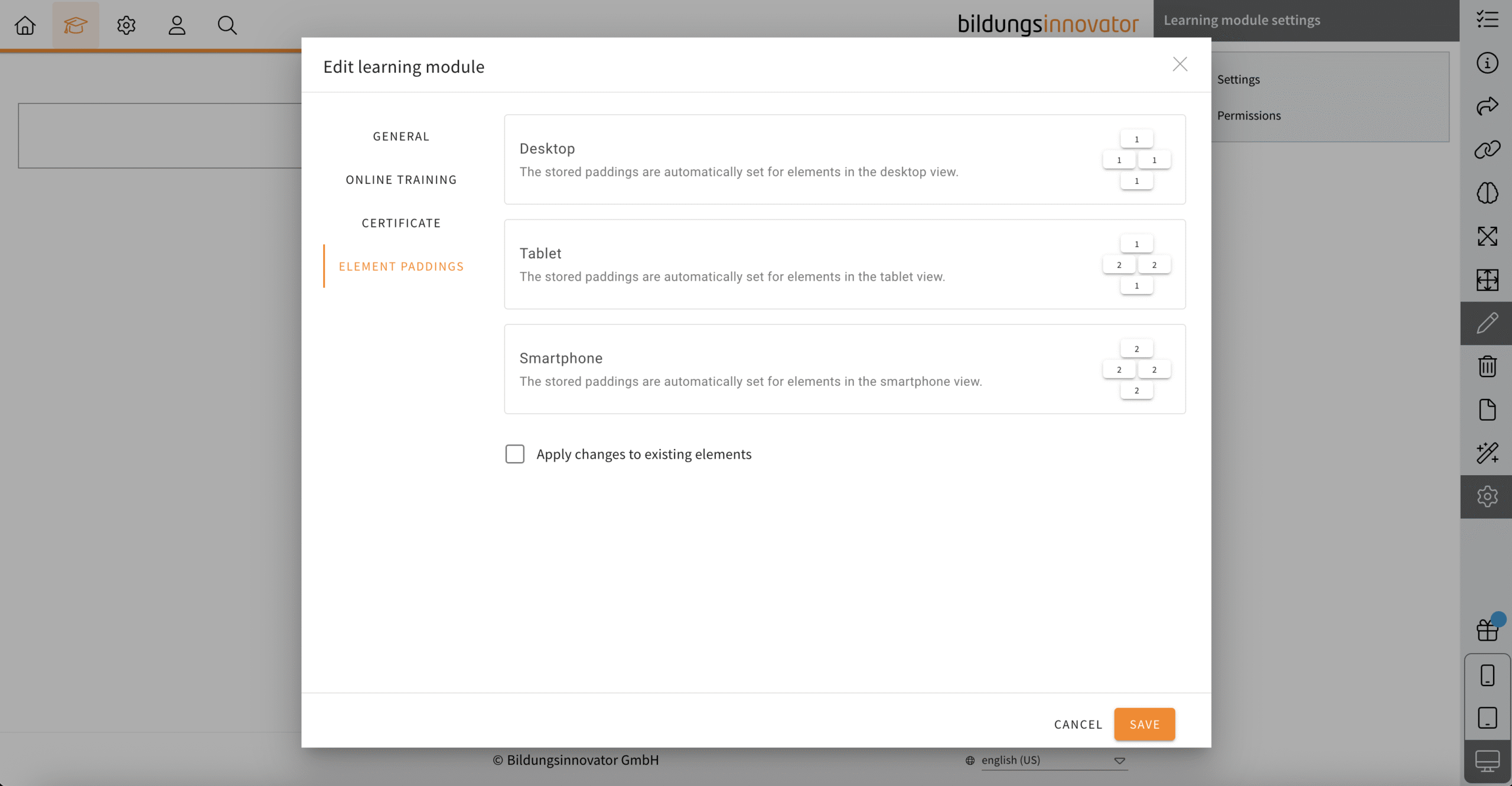
Standard values for element paddings/spacings


The default value for element spacing is 1, but it can sometimes be the case that a spacing of 2 makes more sense for tablets or smartphones. There is a new feature in the settings of learning modules to set this as the new default (for each viewport) and apply it to existing elements if necessary (checkbox).

Note: If you have already set different spacings, the current status will be lost if the checkbox is activated. The values for the spacings are overwritten for all existing elements. There is no check whether individual elements do not match to the previous specifications.

  1. Open the learning module settings.
  2. Click on tab „element paddings“.
  3. Customize the the spacings of each viewport (desktop, tablet, smartphone).
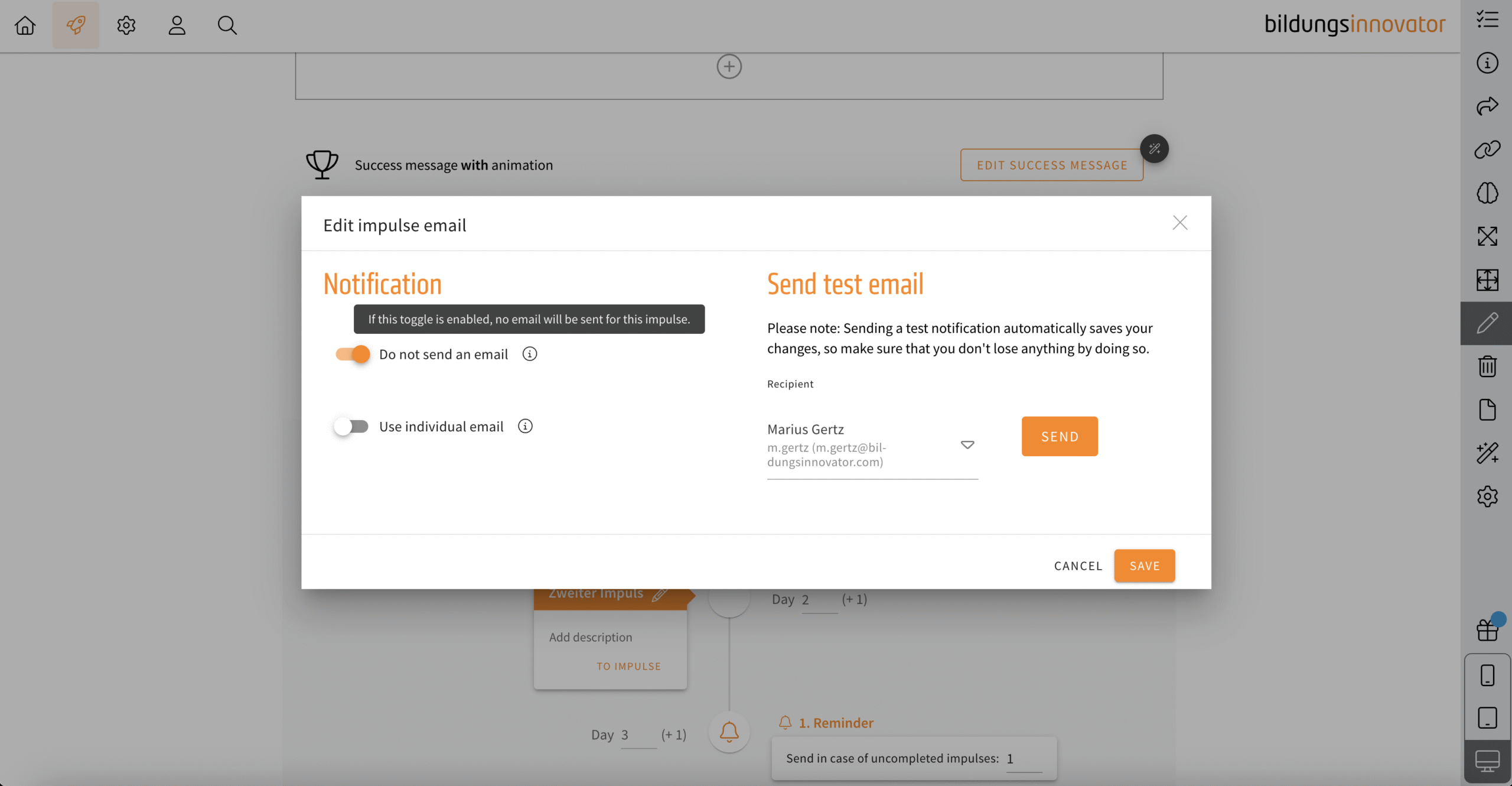
Transfer campaign: Deactivate e-mails for impulses


Decide now whether LXT should notify your learners by e-mail about a newly activated impulse or not. Decide individually for each impulse. You will find the option via the e-mail symbol on each impulse.
Bulk adjustments in the learning module: All row backgrounds span the full width


You can now set for your entire learning module whether the existing rows backgrounds should be span the full width or not. This is useful, for example, if you want to work with backgrounds content (colours, images or videos) that you want have to display across the full width. But the reverse is also possible.

Adjusted height for flipcards


If you have already worked with the flipcards, you have probably already had this „cosmetic“ problem: if there are several flipcards in a row, the flipcards may be different sizes due to the different amount of content. This looked unattractive as the heights were different. In the flipcard style settings, there is a new setting ‘Adjust height to row’. If it is activated for all flipcards in a row, it ensures a uniform height.

Link editor: Mail link available


If you previously wanted to create a mail link, this was only possible via the external link. And here you had to know the syntax (mailto…). Now we have simplified this by creating a new link type explicitly for emails.
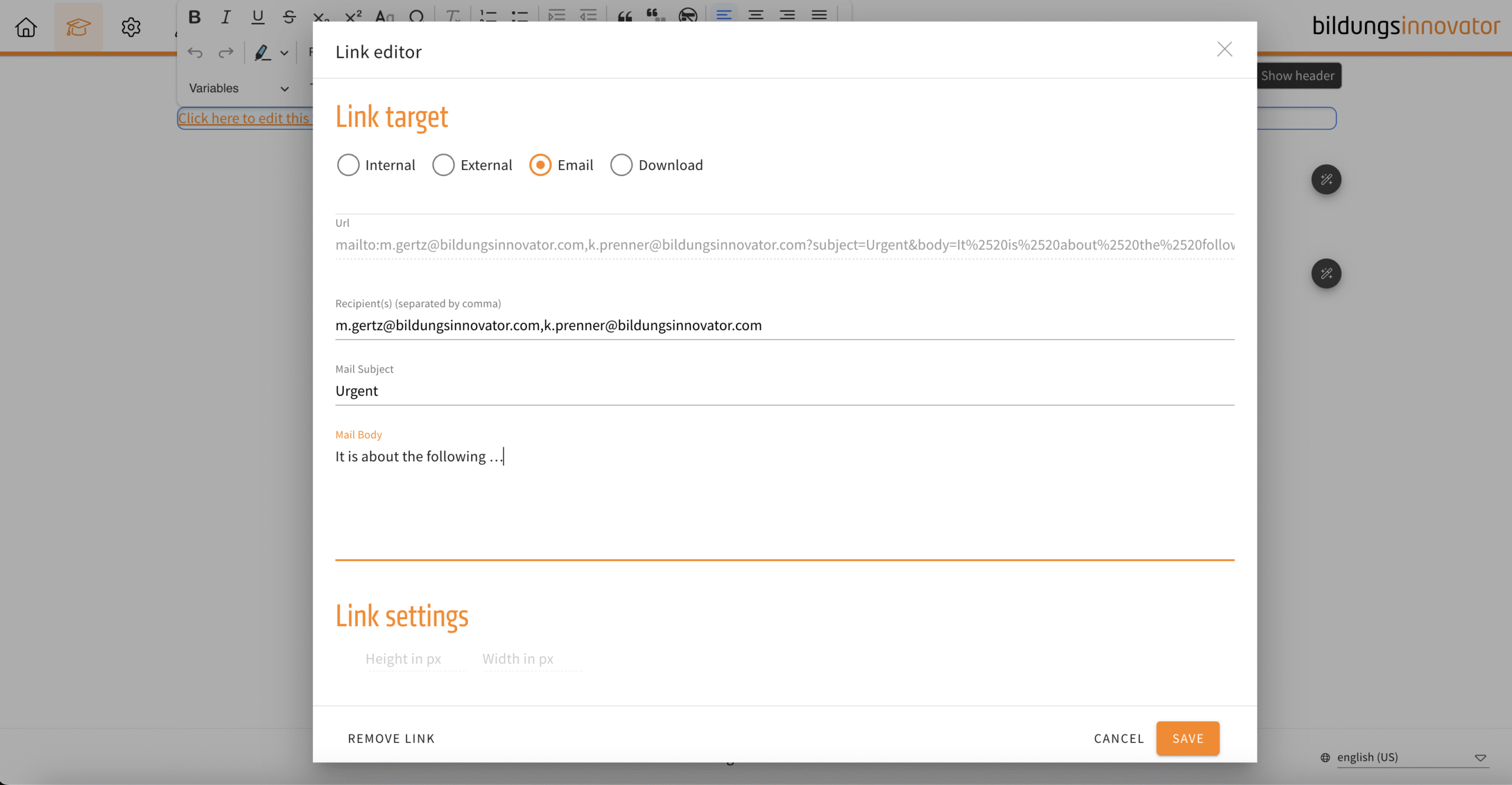
The following input fields are available:

  • Recipient(s) (E-mail address, supports multiple recipients, separate with comma)
  • Mail Subject
  • Mail Body

Slideshow, flipcard, background switcher – inline links


From now on you can set links in continuous text. Previously, this was only possible at the end of a slide/card/line. You set links in the continuous text in the same way as in the text editor.

Example: Set inline links in slideshows.

Element channel – expert predefined


When you create a channel, no expert was automatically stored. If you then forget to define an expert, the questions will go nowhere. To prevent this, you as the creator of the channel are now automatically defined as an expert. If you want to change this, define a different expert. However, an expert must always be specified (mandatory field).

User-Export: Export with current filter settings


Do you need a user export that contains your current filter settings? From now on you can export the current user filter by clicking on the corresponding checkbox. SCORM wrapper users remain unaffected by this.

User-Export_current_filter_settings

New options for Interactive Simulation


The Interactive Simulation element has received several new appearance options.

All of the options can be found in the settings of the simulation on the right hand.

Inline player

If you disable „Simulation in fullscreen player“, the simulation will be presented within the content instead of opening in an overlay.

Large image/video

Using this option the image or video can be shown in a larger format.
If you add a new simulation, this option will be enabled by default.

Questions, answers and feedback on images/videos

Instead of presenting questions, answers and feedback beneath the image or video, those will be shown within the image/video.
This option is only available if you enable „Large image/video“ and will be enabled for new simulations by default.

Navigation to the previous scene possible

If enabled, the simulation will show a „back“ button in the top left, allowing users to navigate back to their previous scene – which ever that is.

Numbering of answers

„Numbering of answers in colored circle“ can be used to completely turn off that the numbering is shown.
„Numbers instead of letters“ switches the letters used by default to numbers.

Task management: Transcription of audio messages


This feature is only available if AI functionality is enabled in your setup.

If you got a task in our task management with an audio message, it is now possible to use AI to transcribe that message.

To do so, click the AI button next to the audio player. The transcription will then be added as an comment.

This feature does not yet work for audio messages within comments but will be added there as well.