Changelog
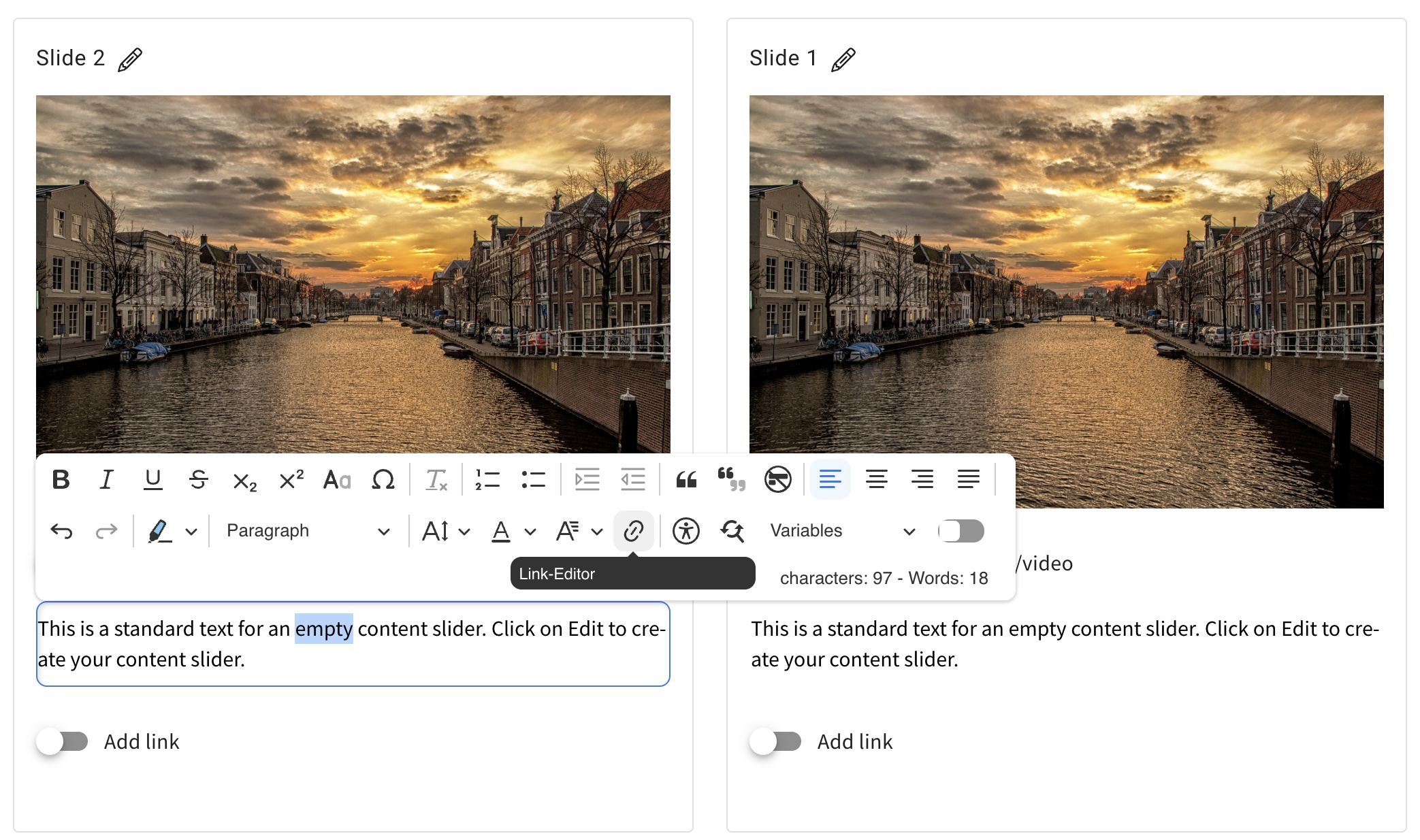
Slideshow, flipcard, background switcher – inline links
From now on you can set links in continuous text. Previously, this was only possible at the end of a slide/card/line. You set links in the continuous text in the same way as in the text editor.
Element channel – expert predefined
When you create a channel, no expert was automatically stored. If you then forget to define an expert, the questions will go nowhere. To prevent this, you as the creator of the channel are now automatically defined as an expert. If you want to change this, define a different expert. However, an expert must always be specified (mandatory field).
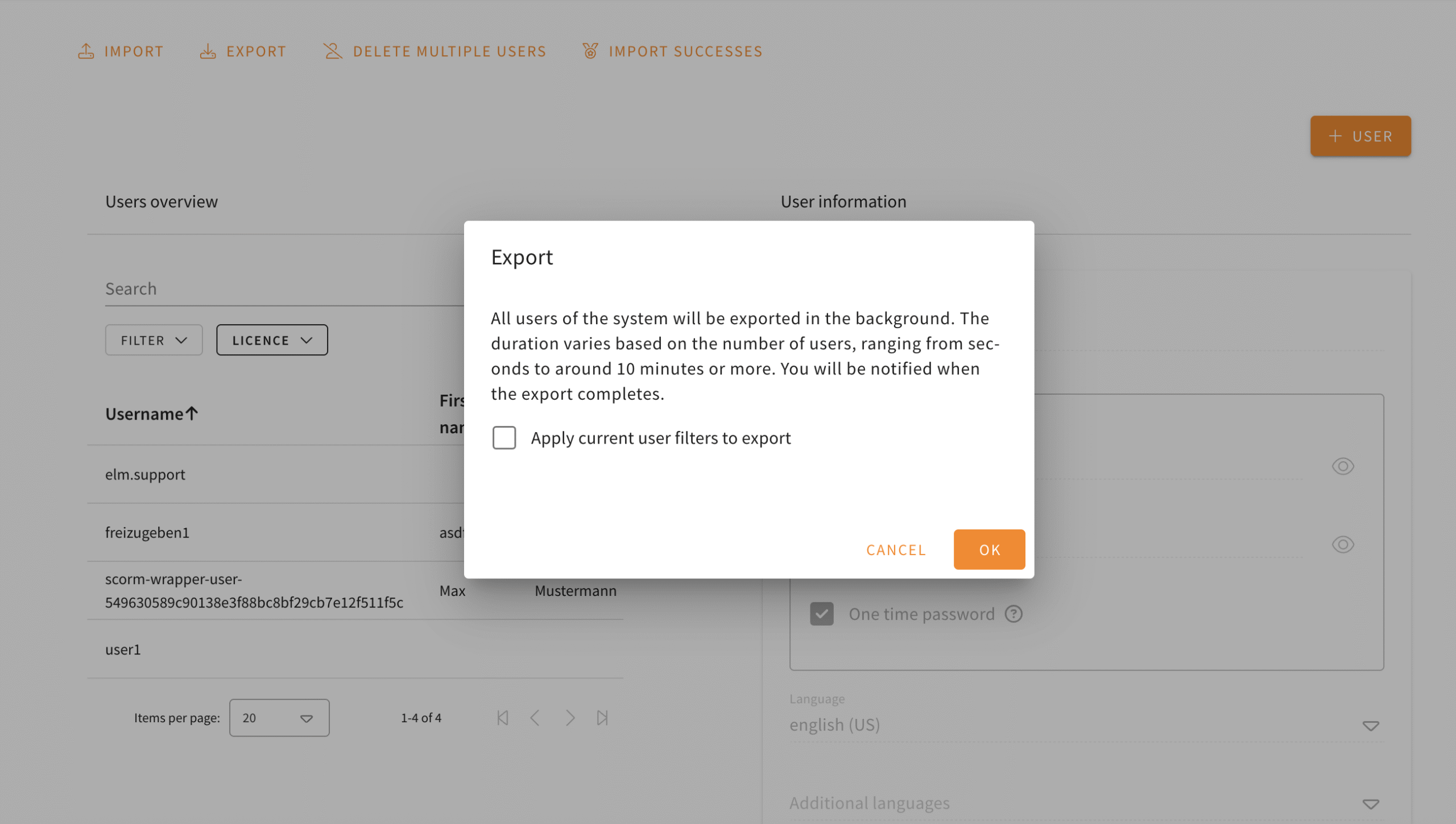
User-Export: Export with current filter settings
Do you need a user export that contains your current filter settings? From now on you can export the current user filter by clicking on the corresponding checkbox. SCORM wrapper users remain unaffected by this.
New options for Interactive Simulation
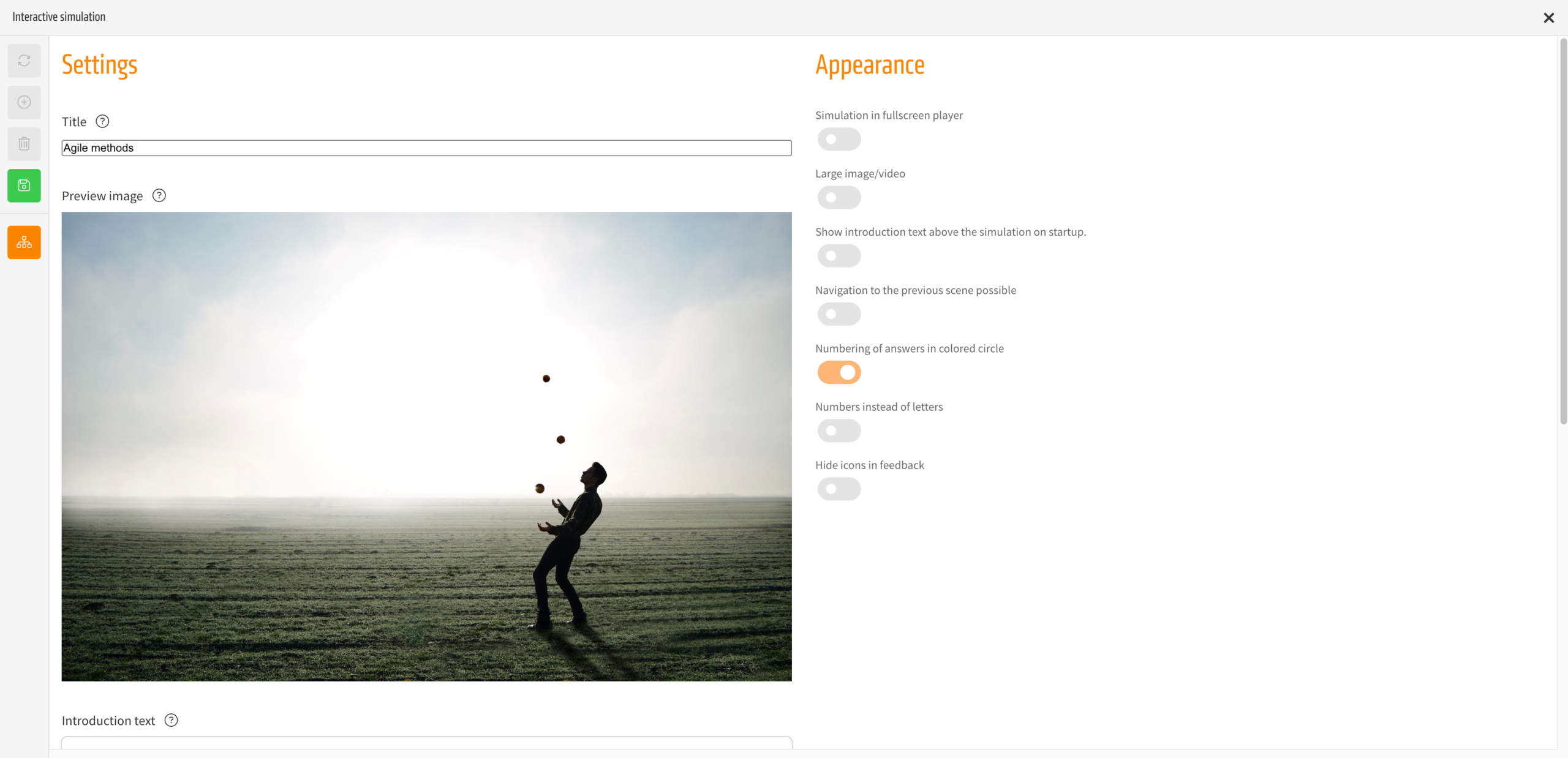
The Interactive Simulation element has received several new appearance options.
All of the options can be found in the settings of the simulation on the right hand.
Inline player
If you disable „Simulation in fullscreen player“, the simulation will be presented within the content instead of opening in an overlay.
Large image/video
Using this option the image or video can be shown in a larger format.
If you add a new simulation, this option will be enabled by default.
Questions, answers and feedback on images/videos
Instead of presenting questions, answers and feedback beneath the image or video, those will be shown within the image/video.
This option is only available if you enable „Large image/video“ and will be enabled for new simulations by default.
Navigation to the previous scene possible
If enabled, the simulation will show a „back“ button in the top left, allowing users to navigate back to their previous scene – which ever that is.
Numbering of answers
„Numbering of answers in colored circle“ can be used to completely turn off that the numbering is shown.
„Numbers instead of letters“ switches the letters used by default to numbers.
Task management: Transcription of audio messages
This feature is only available if AI functionality is enabled in your setup.
If you got a task in our task management with an audio message, it is now possible to use AI to transcribe that message.
To do so, click the AI button next to the audio player. The transcription will then be added as an comment.

This feature does not yet work for audio messages within comments but will be added there as well.
Search in multiple languages
The LXT search can now search across languages.
Up until now the search was limited to the language selected in the bottom right. With this update the search has a toggle named „Search in all languages“. If this toggle is enabled, results from all available languages are shown.
This works for both the classical keyword search and the semantic search available in Engagement tool setups with AI functionality.
Generating subtitles for videos and audios
This update is only available if you have AI enabled in your LXT setup. Please find more information on setting up AI in LXT here (in German).
You can now generate subtitles for your uploaded videos and audios using the AI. This eliminates the need for manual transcription work while making content accessible for all users.
Generated subtitles are also translated if you use either DeepL or XLIFF files for the translation process.
To generate subtitles you first need to upload the video or audio to LXT as usual. Afterwards hover over the element, click the cog wheel and then select the [cc] icon, opening the subtitle editor.
In the subtitle editor there is a new AI button beneath the media preview that starts the subtitle generation.
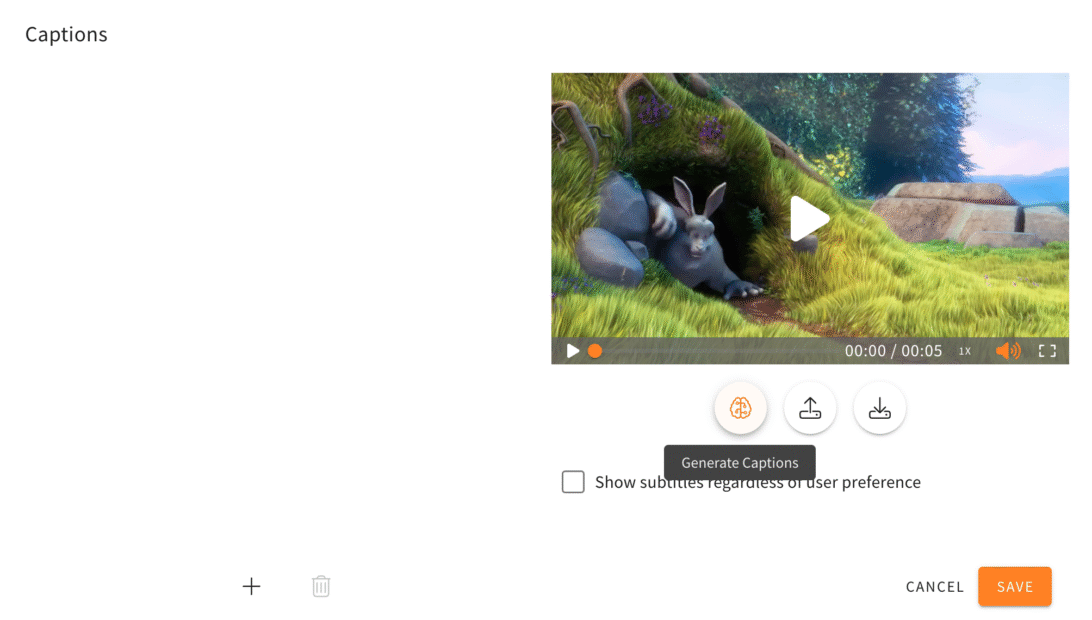
The generated subtitles and the time codes are imported into the subtitle editor and can be manually edited if necessary. Depending on the quality and complexity of the spoken language, a proofreading is recommended.
AI generation of additional quizzes
This update is only available if you have AI enabled in your LXT setup. Please find more information on setting up AI in LXT here (in German).
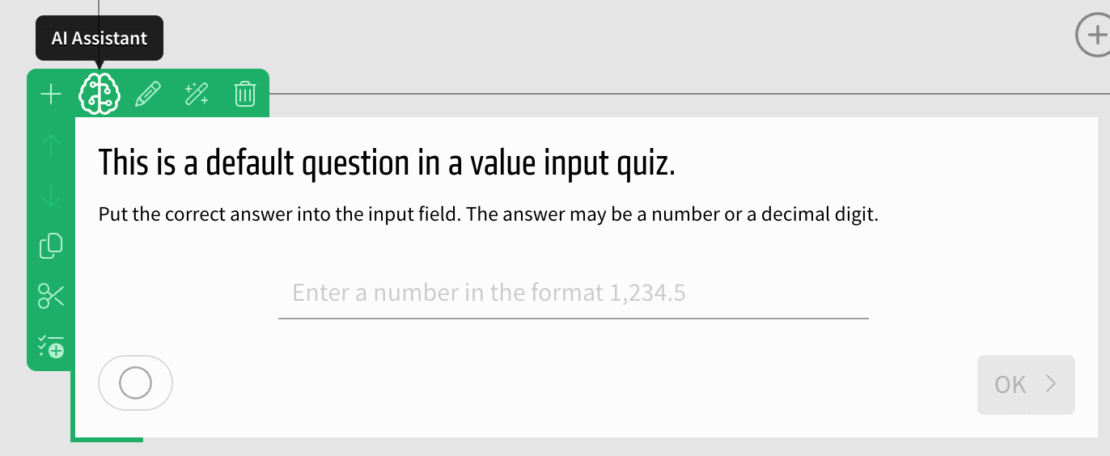
Use the AI to generate even more quizzes: Value input, value slider, date input and order quizzes can now automatically be generated.
To do so, create a quiz of one of these kinds, hover over it and select the „AI assistant“ in the green or orange menu.
See your task while editing an element
If you are using the task management system that is part of LXT, you may have noticed an issue: Some elements require editing in a separate dialog. During this editing process, you could no longer see the associated task.
We’ve now implemented a solution:
Open a task that is assigned to an element. Afterwards edit this element using the pen icon in the green or orange menu. When the editing dialog opens, the task is shown in the bottom left corner.
You can see the complete task with all of its comments there. Use the arrow to collapse the task and reduce the used space or to expand it and see all data related to the task.
This feature also works with quizzes in tests within learning modules.
